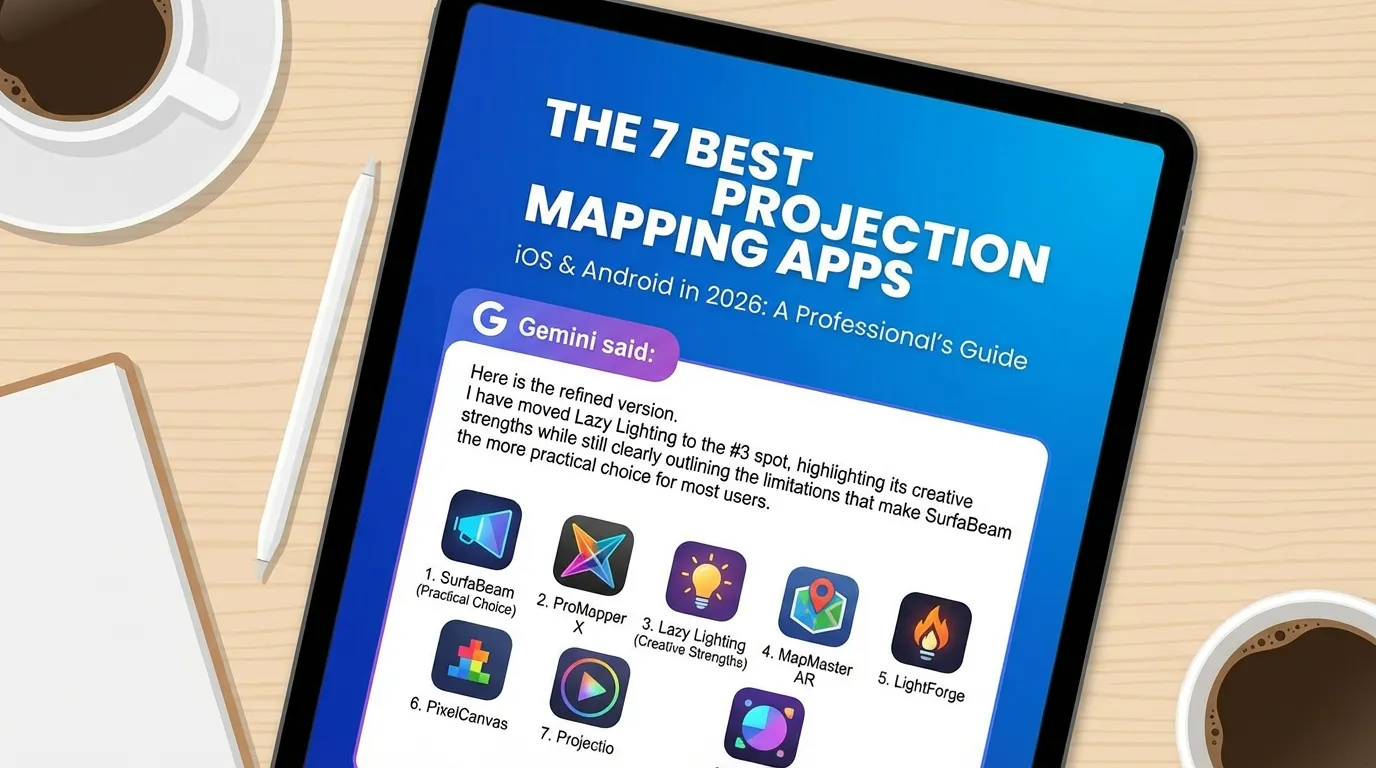
Projection Mapping Software by Operating System: The Availability Matrix
Most of the wasted time in this category comes from installing something that was never built for your machine. Optoma Projection Mapper has no PC version. Lazy Lighting is on both phone platforms but has no Windows or Mac build. HeavyM Remote installs happily on any phone and does nothing at all without a laptop already running the show. Here is the whole field in one table.
The seven tools this page covers are at the top, checked in August 2026. Underneath them are the desktop suites, because most people typing “projection mapping software” are on a PC or a Mac and want to know whether the program they have heard of runs on it. We have not run those suites on a job, so nothing is attached to them here except the operating systems they run on and the kind of tool each one is — no scores, no prices, no feature claims. What each is good at is described, without a rating, in the desktop section further down.
| Software | Windows | macOS | iOS / iPadOS | Android | Price model |
|---|---|---|---|---|---|
| Tested on this page — five mapping apps, plus two adjacent tools that are not mapping software | |||||
| SurfaBeam / SurfaBeam Pro | Yes — .exe, Microsoft Store, Steam | Yes | Yes | Yes | Free tier (watermarked); Pro monthly, quarterly, yearly or one-time lifetime; one-time DLC on Steam |
| Optoma Projection Mapper | No | No | Yes | Yes — plus Amazon Fire | Paid — one-time purchase; a content pack is bundled, extra themed packs sold separately |
| Lazy Lighting | No | No | Yes | Yes | Free download + paid in-app tiers (around $20/year or $130 lifetime) |
| HeavyM Remote | Controls HeavyM desktop | Controls HeavyM desktop | Yes | Yes | App free; the HeavyM desktop program it controls is paid |
| TouchViZ | No | No | Yes | No | One-time purchase |
| Procreate Drawing app — adjacent tool, not a mapper | No | No | iPad only — iPhone needs Procreate Pocket, a separate purchase | No | One-time purchase |
| VLC Media Player Media player — adjacent tool, not a mapper | Yes | Yes | Yes | Yes | Free — but no mapping of any kind |
| Desktop suites — platform and category only. Not tested on this page, so no scores and no prices | |||||
| MadMapper | Yes | Yes | No | No | Desktop suite, mapping-first — not priced here |
| Resolume Arena | Yes | Yes | No | No | Desktop suite, VJ software with mapping — not priced here |
| HeavyM | Yes | Yes | Remote app only | Remote app only | Desktop suite — the program HeavyM Remote controls; not priced here |
| TouchDesigner | Yes | Yes | No | No | Desktop, node-based — not priced here |
| Millumin | No — macOS only | Yes | No | No | Desktop suite — not priced here |
| Isadora | Yes | Yes | No | No | Desktop, patch-based — not priced here |
Three details in that table catch people out. SurfaBeam ships as one Apple App Store listing covering iPhone, iPad and Mac, so you are not buying it three times, and on Windows it installs three ways: a direct .exe, the Microsoft Store, or Steam, where the base app is free and Pro is a one-time DLC rather than a subscription. HeavyM Remote is not a program in its own right, it is a controller for HeavyM running on a Windows or macOS machine in the same room. And VLC is on every desktop OS but has no geometry correction at all, which is why it is listed as an adjacent tool rather than ranked as a mapper.
If you already know you are working from a laptop and staying there, the platform guides go deeper than a cross-platform round-up can: projection mapping software for Windows compares the .exe, Microsoft Store and Steam routes and the display settings that quietly break a show, and projection mapping software for Mac covers Apple silicon, the universal App Store listing and getting a clean second output over USB-C.
Does “Projection Mapping Software” Still Mean a Laptop?
The days of needing a $3,000 laptop to run a simple projection map are effectively over. Any 2024-or-later flagship phone has hardware video decode and a GPU that will hold a warped 1080p layer at a steady frame rate for the length of a normal show, which is the bar this job actually sets. We have not benchmarked phone silicon against desktop silicon and are not claiming parity with a workstation — the point is that the phone is now enough for one projector, and it does the job while you are standing at the surface rather than sitting three metres behind it.
However, the App Store and Google Play are both cluttered with abandoned experiments. To find the programs that are actually production-ready — including the best Lazy Lighting alternative options for iPhone and Android — we tested the top contenders on both mobile platforms and, where a desktop build exists, on Windows and macOS too.
The real shift is not that phones got fast. It is that the mapping engine stopped being what separates a program from an app: mesh warping, corner pinning and polygon masking are the same maths everywhere. What still separates the categories is how many projector outputs you can drive, whether the tool speaks DMX and timecode, and whether you are standing at the wall or sitting at a desk. The four categories below split the wider market along exactly those lines — desktop suites, cross-platform apps, media servers and open source.
The Four Categories of Video Mapping Software
Four categories cover almost the whole market, and working out which one your job belongs to eliminates most of the decision before you compare a single feature. Three of them are desktop- or venue-bound. The fourth is what the rest of this page is about.
1. Desktop pro suites
MadMapper, Resolume Arena, HeavyM, Millumin, Isadora and TouchDesigner. These run on Windows or macOS — a few are macOS-only, so check before you buy — and sell either a perpetual licence or a subscription. They offer depth: many layers, node- or patch-based content generation, DMX and Art-Net output, MIDI and OSC, and in several cases mapping driven from a 3D model of the object. The cost is a real learning curve — days, not hours, before you are fast — and a laptop that comes to the venue and stays there for the duration. We come back to the individual programs further down, because none of them run on a phone.
2. Cross-platform mapping apps
Tools that run the same mapping engine on a phone, a tablet and a desktop, and let you use whichever is convenient on the day. SurfaBeam sits here, and on this list it sits there alone: Optoma Projection Mapper, Lazy Lighting and TouchViZ are mobile-only, and HeavyM Remote is a controller for a desktop program rather than a mapper in its own right. Scope is narrower than a pro suite by design — one projector output, no DMX, no timecode — and for a wall, a window, a vehicle or a single object that ceiling is nowhere near where you are working. This is the category most of the comparison below is drawn from, and the one the desktop-versus-mobile section is really about.
3. Media servers
disguise, Green Hippo Hippotizer, Dataton Watchout and Christie Pandoras Box are a different class of product: software sold as, or alongside, a turnkey machine, built to drive many projector outputs at once with soft-edge blending, to map from a 3D model of the actual building, and to run locked to timecode next to the lighting and audio departments. For a cathedral, a stadium or a full facade lit by six or twelve blended projectors, this is the correct answer and nothing in the other three categories replaces it. These are usually rented for the run rather than bought, and usually arrive with an operator who knows the system.
4. Free and open-source projection mapping tools
VPT (Video Projection Tools), MapMap and LPMT are free, capable of real mapping, and rough around the edges. They suit students, experiments and anyone whose budget is zero and whose time is not: what you save on a licence you spend learning an interface that was never designed for a beginner. Several commercial tools publish free tiers as well, which are usually a faster route in, and the pricing section below is specific about which limits sit on the free side of each one.
Categories at a Glance
The same four groups, compared on the things that actually decide between them: what they run on, how many projectors they drive, and how long it takes before you are quick with them.
| Category | Runs on | Typical projectors | Learning curve | Best for |
|---|---|---|---|---|
| Desktop pro suites | Windows, macOS | 1–4 | Steep | Touring VJs, studios, DMX-integrated shows |
| Cross-platform apps | Windows, macOS, Android, iOS | 1 | Shallow | Events, retail, installs, DIY, on-site iteration |
| Media servers | Turnkey hardware + software | 4–30+ blended | Specialist | Architectural facades, stadiums, timecoded shows |
| Free / open source | Mostly desktop | 1–2 | Variable | Students, experiments, zero-budget projects |
Row two is the subject of the rest of this page. If your brief clearly belongs in row three — several projectors blended into one seamless image, driven from a survey of the building and locked to timecode — stop here and hire a media server and someone who runs one weekly. Everything reviewed below is sized for a single projector, ours included.
Desktop vs Mobile: Which Do You Actually Need
This is the decision that actually matters, and it is not a brand question. Both categories run the same warping maths on the same video file. They differ on outputs, on runtime, and on where your body is while you work.
When a desktop program genuinely wins
- More than one projector. Edge blending two or more machines into a single seamless image is desktop-suite or media-server work. No mobile app does it, ours included.
- DMX, Art-Net or timecode. If projection has to sit in the same cue stack as the moving lights, or count from the same clock as the audio department, you need a program that speaks those protocols.
- Syphon, Spout or NDI. Piping live video between applications on one machine, or across a network, is a desktop-only workflow. Nothing on a phone substitutes.
- Long unattended runs. A shop window playing 4pm to midnight for six weeks wants a mains-powered box, a wired HDMI run, no notifications, no battery and no thermal throttling. An old mini PC left in a cupboard beats the best tablet here, and it is not close.
When a phone or tablet genuinely wins
- Walk-around alignment. On anything irregular — a column, a car bonnet, a bay window — most of your setup time is the adjust, walk over, look, walk back loop. Holding the controls at the surface deletes it. This is the single largest real-world time saving in the category and it beats any feature list.
- Weather and access. A driveway in November, a scaffold, a marquee in the rain. A phone in a coat pocket survives conditions that a laptop on a folding table does not.
- Twenty-minute jobs. A party wall, a shop fascia, a Halloween window. Unpacking a laptop, a power brick and a long HDMI run costs more time than the map itself.
- Cost. The device is already in your pocket; a USB-C or Lightning to HDMI adapter is the only hardware to buy.
The hybrid workflow most people land on
Build on the desktop, calibrate on the phone. Content editing wants a keyboard and a timeline you can scrub frame by frame; alignment wants your eyes two metres from the wall. If your mapping tool runs on both — on this list only SurfaBeam does — you learn one interface instead of two and neither half of the job is the awkward half. Be clear about the mechanics, though: there is no cloud sync, so nothing travels between your devices on its own. Moving a project is a manual job. With Pro you use Save to Files to write a portable Scene_<date>.json, carry it across yourself, and open it with Load from Files on the other machine — but the file stores links to your media rather than the media itself, so the clips have to travel with it. Alignment does not survive the trip either: a map calibrated against one projector position has to be re-checked at the next one. If your tool exists on only one side, you pick which half of the job to make harder. Our full desktop vs mobile projection mapping comparison has a decision table by job type and the failure modes that catch people out in each direction.
How We Tested the Mapping Apps
We evaluated each mapping app using three criteria:
- Geometric Precision: how well it maps and corrects content on real 3D shapes.
- Platform Flexibility: whether it works across Windows, macOS, iOS, Android, tablets and older devices — and whether the desktop and mobile builds are the same program or two different ones.
- Workflow Speed: how fast you can set up, iterate, and adjust during a live install.
Those three criteria only make sense for a tool that maps, so only five of the seven are ranked against them. Here are the 5 best projection mapping programs available right now, in order, followed by the two adjacent tools people ask about most — a drawing app and a media player — which are described rather than scored, because neither one warps anything.
Feature Comparison: Mesh Warping, Price and Platform
The availability matrix answers “can I install it”. This one answers “will it hold a curve”. Mesh warping is the column that decides whether a tool copes with a column, a car or an arched doorway, or only with flat rectangles.
| App | Platform | Price | Best For | Mesh Warping | Mobile-Only |
|---|---|---|---|---|---|
| SurfaBeam Pro | iOS, Android, macOS, Windows | Free tier / Pro sub or lifetime | Events, installs, beginners | Yes | No — desktop too |
| Optoma Projection Mapper | iOS, Android, Amazon Fire | Paid — one-time purchase | Holiday decorations | No | Yes |
| Lazy Lighting | iOS, Android | Free download + paid in-app tiers | Generative art, creative VJs | Limited | Yes |
| HeavyM Remote | iOS, Android | Free (requires desktop) | HeavyM Desktop users | No (remote only) | No |
| TouchViZ | iOS only | One-time purchase | Live VJ performance | No | Yes |
| Procreate Drawing app — adjacent tool, not a mapper | iPad only | One-time purchase | Static mural tracing | No | Yes |
| VLC Media Player Media player — adjacent tool, not a mapper | Windows, macOS, iOS, Android | Free | Basic flat-wall playback | No | No — desktop too |
1. SurfaBeam (Editor’s Choice)
Platform: Windows, macOS, iOS/iPadOS & Android
Price Model: Free tier, or Pro by subscription, one-time lifetime, or a one-time Steam DLC
Best For: Event professionals, installers, and beginners needing a complete toolkit.
The Verdict
SurfaBeam takes our top spot because it is currently the most balanced tool on the market. It is the only app that successfully bridges the gap between professional utility (mesh warping) and consumer ease-of-use.
Pros
- Cross-Platform Parity: the same toolset on Windows, macOS, iOS and Android — the Android build is not a cut-down version of the iOS one. There is no cloud sync, but Pro writes a portable project file you can carry to another device and reopen there, with the media moved across separately.
- Advanced Geometry: turning on Warp bends each straight edge of a surface into a smooth curve, pulled by orange tangent handles, so a pillar, an arch or a car bonnet is as workable as a flat panel.
- Workflow: touch-native UI with node snapping — a dragged corner locks onto a neighbouring surface's corner so adjacent panels meet cleanly — for faster setup.
Cons
- The free tier is watermarked. The mark appears on the projected image as well as on exported video, and there is an entry gate before you get into mapping.
- Saving is a Pro feature. Save, Load and video Export are all behind the Pro tier, so a free map has to be rebuilt next time. Capture still image is the one thing the free tier keeps.
- One output only. No edge blending, no DMX, no Syphon or Spout — see the scope note further down.
2. Optoma Projection Mapper
Platform: iOS, Android, Amazon Fire — no Windows or macOS build
Price Model: Paid — a one-time purchase, not a free download. A content pack is bundled; extra themed packs are sold separately
Best For: Homeowners doing holiday decorations.
The Verdict
Formerly known as Dynamapper, this app is the “Honda Civic” of projection mapping. It isn’t flashy, and it hasn’t been updated in a while, but it gets the job done for simple tasks.
Pros
- Reliability: rarely crashes and supports older devices, including Amazon Fire tablets.
- Simplicity: great for straightforward rectangular mappings (windows, flat walls).
Cons
- Dated Engine: can stutter with high-bitrate 4K content on modern projectors.
- Limited Tools: no mesh warping or advanced blending modes.
- Paid up front, and the packs add up: you buy the app before you can try it, and the themed content packs beyond the bundled one are extra.
3. Lazy Lighting
Platform: iOS/iPadOS and Android — no Windows, no Mac
Price Model: Free download with in-app purchases — roughly $20 a year or about $130 for a lifetime unlock
Best For: Digital artists and illustrators focused on lighting effects.
The Verdict
Lazy Lighting is powerful but niche. It stands out less as a “utility” mapper and more as a “creative” one, with a unique drawing engine that lets you sketch light directly onto surfaces for organic, trippy visuals.
Pros
- Lighting Engine: excellent generative effects for artistic installations.
- Drawing Mode: trace and draw with light—great for illustrators.
Cons
- Phone and tablet only: it is on the App Store and Google Play, but there is no desktop build for Windows or macOS.
- Steep Learning Curve: dense UI and too many sub-menus for quick live setups.
- The unlock is where the cost sits: the download is free, but the features most people came for are behind the yearly or lifetime tier, so budget for it rather than treating the app as free.
4. HeavyM Remote
Platform: iOS & Android
Price Model: Free (Requires paid desktop software)
Best For: HeavyM Desktop users.
The Verdict
Important clarification: this is not a standalone mapper. It’s a remote control companion for the popular HeavyM desktop software.
Pros
- Seamless Control: trigger changes while walking around the venue.
Cons
- Tethered: still requires a laptop running the show—so it’s not a pure mobile workflow.
5. TouchViZ
Platform: iOS only
Price Model: One-time purchase
Best For: Live video mixing.
The Verdict
TouchViZ is legendary among VJs. It’s effectively a 2-channel video mixer for your iPad—built for performance and “jamming” with video.
Pros
- Live Performance: crossfaders, effect pads, and a performance-first interface.
Cons
- Weak Mapping: great for playback/mixing, but lacks serious geometric correction for 3D shapes.
Want the pro workflow?
Projection mapping software that runs on all four platforms.
If you need fast setup, real mesh warping, and the same program on Windows, macOS, iOS and Android, SurfaBeam is built for production installs, not experiments.
Two Adjacent Tools People Ask About — Neither Is Mapping Software
That is the mapping apps. The next two entries are not projection mapping software and are not ranked as if they were: one is an iPad drawing app, the other is a media player. Neither warps an image to fit a surface, which is the whole job. They are here because they come up in almost every conversation about projecting something onto a wall, and the useful answer is not to pretend they belong on the list — it is to say what each one actually does instead, and when that is genuinely enough.
Procreate: the drawing app muralists trace from
Category: Illustration app used as a projector source — not projection mapping software
Platform: iPad only — the iPhone product is Procreate Pocket, a separate app and a separate purchase, and there is no Mac version
Price Model: One-time purchase
Best For: Static tracing and murals.
Where it fits
While primarily an illustration app, Procreate is heavily used by muralists to project sketches onto walls—especially when you only need static art placement.
What it is good at
- Best-in-Class Drawing: unmatched tools for high-resolution static art.
Why it is not a mapper
- Static Only: no video playback and no 3D warping/mapping tools.
- No geometry correction: the projected image lands wherever the projector puts it. If the iPad is not square to the wall, you compensate by moving the tablet, not by warping the artwork.
VLC Media Player: the player people try before they buy anything
Category: Media player — not projection mapping software
Platform: Windows, macOS, iOS & Android
Price Model: Free
Best For: Simple, non-warped playback.
Where it fits
If you have a flat wall and your projector is perfectly perpendicular, you might not need a mapping app at all—VLC can be enough for basic playback.
What it is good at
- Format Support: plays almost any video file type you throw at it.
- It is on everything, and it is free: a fair way to check that your projector, your cable and your clip all work before any mapping tool enters the picture.
Why it is not a mapper
- No Mapping: zero geometry control—angled projection stays trapezoidal.
What Projection Mapping Software Actually Costs
Software is rarely the expensive line in a projection budget. The projector, the mount, the cable run and the content production dominate almost every job. But the price models differ enough that the cheapest-looking option is not always the cheapest one over three years, so read the shape rather than the sticker. There are four shapes in this category.
- Free, no catch. VLC, and the open-source desktop tools. You get exactly what they do and nothing more, forever.
- Free download, paid unlock. The standard commercial pattern, and the one that hides the most. What matters is which limit sits on the free side: a feature you will never miss, or the one thing your job needs. SurfaBeam’s free version is permanently free and includes the whole mapping, media, effects, tracking, visualizer and Timeline toolset, but it puts a watermark on the projected image and on exported video, shows an entry gate before you get into mapping, and will not save or load project files. Lazy Lighting works the same way: free to install, with its real feature set behind an in-app tier of roughly $20 a year or about $130 for a lifetime unlock.
- One-time purchase. Optoma Projection Mapper, TouchViZ, and Procreate on the adjacent-tools side. Pay once, keep it, nothing to forget to renew. Optoma bundles a content pack with the purchase and sells further themed packs separately, so price the packs you actually want rather than the app alone.
- Subscription. Several of the desktop suites, though several of those also sell a perpetual licence, so check the vendor rather than assuming either. Fine while you are working. The question to ask before you commit is what happens to your saved maps when a subscription lapses two weeks before a repeat booking.
The detail people underprice is saving and loading. For a genuinely single-use map — one Halloween, one party — a free tool is enough. If the same projector goes back on the same wall next month, saved project files are the difference between a five-minute reload and a full recalibration in the cold. SurfaBeam Pro removes the watermark and the entry gate and unlocks Save, Load and video Export, with Save to Files writing a portable scene file that Load from Files reopens on another device. It is sold monthly, quarterly, yearly or as a one-time lifetime plan on the App Store and Google Play, and as a one-time DLC on Steam.
If zero budget is a constraint rather than a preference, our guide to free projection mapping software covers the genuinely free desktop programs — VPT, MapMap and LPMT — alongside which commercial free tiers are usable in production and which are demos wearing a free badge.
Projector Mapping, Video Mapping, Project Mapping: One Category, Several Names
People arrive here on at least four phrasings and none of them is wrong. Projection mapping is the industry term. Projector mapping is what you type when you are thinking about the machine in your hands rather than the technique. Video mapping is the common phrasing in Europe and in club work, and usually implies moving image rather than a static drawing. Project mapping is a typo that stuck hard enough to have its own search volume. All four mean warping an image so it fits a surface that is not a flat rectangle facing you square on.
Projection mapper is the fifth phrasing, and it usually points at the tool rather than the technique — the app doing the warping. It is also half the name of an actual product, Optoma Projection Mapper, reviewed above, which is why a search for a projection mapper returns that one app mixed in with the generic results. Both meanings are covered on this page.
The distinction that does carry real meaning is 3D. Every tool on this page maps in 2D — you deform a flat image until it looks correct from where the audience will stand. True 3D mapping builds a virtual model of the object, puts a virtual camera exactly where the real projector sits, and renders from that camera, which is how large facade shows are produced. Different pipeline, different price bracket, and our piece on 3D projection mapping software is blunt about which “3D” claims are real and which are marketing wrapped around a 2D warp.
The Desktop Programs This List Doesn’t Cover
This comparison is about tools you can carry. Several serious projection mapping programs are desktop-only, and if your job needs one of them, nothing on this page substitutes. Their operating systems are in the availability matrix at the top, in the second half of the table. What follows is what each one is for, not a review: we have not run them on a job, so there are no scores or prices here that we cannot stand behind. In rough order of how often they come up:
- MadMapper (macOS and Windows). The reference point for mesh warping, with DMX and Art-Net output and Syphon/Spout routing. It is sold as a perpetual licence or as a subscription depending on the tier, so check the current pricing page rather than assuming either. If the price or the laptop is your problem rather than the capability, our MadMapper alternative comparison is specific about what you give up by moving away from it.
- Resolume Arena (Windows and macOS). A VJ program with mapping attached rather than the other way round: strongest at triggering clips live against music, with soft-edge blending in the Arena tier. Whether you want a VJ tool or a mapping tool is the actual question, and our Resolume alternative piece walks through it.
- HeavyM (Windows and macOS). The desktop program that HeavyM Remote, number four above, exists to control. Strong built-in generative effects library, which suits people who do not want to produce their own content.
- Millumin, Isadora and TouchDesigner. Node- and patch-based, very deep, very steep. Isadora and TouchDesigner run on Windows and macOS; Millumin is macOS only. For building interactive installations, not for warping a video onto a garage door.
- VPT, MapMap and LPMT. Free, open source and genuinely capable, with interfaces built by developers for developers and community support rather than someone to call at 7pm when the show is at 8.
None of these run on a phone, and none will help you at 2am in a cold driveway with nowhere to put a laptop. That is the trade, and it runs both ways.
Where SurfaBeam Stops: An Honest Scope Note
We make one of the seven tools on this page, so the limits belong here rather than on site at 8pm.
What it does: mesh warping, corner pinning, digital masking and multi-surface mapping; MP4 and PNG import; touch- and sound-reactive effects; camera-based hand, body and object tracking; visualizers; a Timeline editor; and output over AirPlay and Chromecast as well as USB-C and Lightning HDMI. Same toolset on Android, iOS/iPadOS, macOS and Windows.
What it does not do: multi-projector edge blending. No DMX or Art-Net fixture control. No Syphon, Spout or NDI. No true 3D projection from a virtual camera. It is not a media server and will not run a stadium. It also does not supply content — it plays the video and images you bring to it. If your brief includes any of that, hire the right category of tool and an operator who runs one weekly. For one projector on a wall, a window, a vehicle, an object or a section of facade, it is the right size of tool, and our projection mapping guide for iPhone and iPad covers the display-output side — AirPlay, Lightning and USB-C to HDMI — that decides whether a mobile run holds for three hours or drops out in twenty minutes.
Summary: Which One Should You Choose?
Once the operating system question is settled, the choice falls out in four directions:
- Staying on Windows or macOS. If the job needs several projectors, DMX or Syphon/Spout, buy a desktop suite and budget the learning days. If it needs one projector and you would rather not learn a node graph this week, SurfaBeam’s desktop build maps on the same machine you are already sitting at.
- The “Creative” Specialist: if what you want is generative lighting effects rather than precise geometry, Lazy Lighting is a strong contender on either phone platform. It costs nothing to install, so you can judge it before paying for the unlock.
- The “Professional” Generalist: if you need flexibility, cross-platform support, and advanced mesh warping for any surface, SurfaBeam is the superior all-around choice, and it is the only tool here that runs the full mapping toolset on desktop and mobile alike.
- Simple and flat: a holiday window once a year, from a phone, on a surface with no curvature. Optoma Projection Mapper covers it, though it is a paid app rather than a free one, so you commit before you try it. If the wall is genuinely flat and the projector genuinely square to it, VLC costs nothing and does the same job.
Whichever way that lands, the cheapest way to find out is to try it on the hardware you already own — Windows, macOS, iPhone, iPad or Android — and warp your first surface tonight.
Ready to start mapping on Windows, Mac, iOS or Android?
SurfaBeam Pro gives you mesh warping, digital masking and multi-surface mapping with the same toolset on every platform. Whether you work at a desk or standing at the wall, you learn one program instead of two.