What Halloween Projection Mapping Actually Is for a Home Haunt
A projector throws a rectangle. Your house is not a rectangle. Halloween projection mapping is the work of reconciling those two facts: bending the video until it fits the shape that is actually there, and cutting the light so it lands only on that shape. The ghost and the pumpkin faces are just the clip you happen to be playing.
That distinction is what separates a mapped home haunt from a projector pointed at a wall. A projector pointed at a wall lights the wall, the gutter, the hedge and the pavement, and everyone can see where the beam comes from. A mapped haunted house lights the window and nothing else, so the effect reads as something happening in the house rather than something being shone at it.
Those two halves — the clip and the alignment — are sold separately, which is why the internet only covers one. Clips come from content vendors. Alignment comes from software, and alignment is what decides whether anyone slows the car down.
Real pumpkins on the step are the one prop that changes the recipe: a row of them wants a surface each rather than one wide rectangle, and each face has to be shaped to a round object. That job is walked through separately in how to set up and align singing pumpkins.
Rear Projection or Front Projection: Decide Before You Buy Anything
First fork, and it changes your projector, your budget and your weatherproofing. Settle it in daylight, standing on the pavement, before you order anything.
Rear projection into a window: the home haunt workhorse
You hang a translucent screen inside the window and project onto it from the room. From the street the window glows and something moves behind the glass. It is the stronger effect and the easier install: the projector stays indoors, dry and unlikely to be tripped over; nobody on the path casts a shadow through the image; and the frame gives you a hard edge to mask against. For most home haunts this is the whole display — two lit windows read as a haunted house far better than one washed-out facade does.
Purpose-made rear-projection fabric is grey rather than white and holds contrast under street light. Three cheap stand-ins, in order of how well they work. A white frosted shower-curtain liner — PEVA rather than vinyl — pulled taut on a tension rod is the best of them. A plain white roller blind you already own is the fastest: pull it down and project onto the room side, though a blackout-lined blind is too opaque and a glossy one throws a hot spot back at you. A cotton painter's drop cloth stapled to a batten across the reveal covers a big or awkward opening cheaply, but the heavier weave costs you brightness, so budget for it. A bed sheet is the worst common choice: the weave shows and the cotton eats half your light.
Whatever you hang, hang it flat and hang it close to the glass. Every crease catches light and reads from the street as a fold in the ghost, so steam or stretch them out; and a screen set two feet back into the room shows a dark border around a small bright panel instead of a full lit window. Take the net curtains down — they diffuse a second time and grey everything off — and shut the door behind you so the hall light is not backlighting your own screen.
Two things catch people out. A 90 cm window filled by a 1.5:1 throw ratio projector needs about 1.35 m of clearance behind the screen, which most front rooms have and most hallways do not. And lettering reads backwards from the street, so mirror the file horizontally before you export it.
Front projection onto siding, a garage door or a gable
Front projection is for surfaces you cannot get behind, and it scales to a whole house front in a way rear projection never will. But the projector is outdoors in October, the image fights street lighting, and anyone on the path becomes a silhouette. Pale, matte and flat is what you want: red brick eats roughly half your brightness, and dark stone is close to hopeless.
Texture is the second tax, and it is the one that surprises people. Brick, roughcast render and deep board-and-batten siding are not flat — every course and every board edge is a tiny shadow, and a beam arriving at an angle rakes across them and prints its own mortar lines through your image. Two things follow. Aim as close to straight-on as the driveway allows, because a raking beam maximises those shadows while a square one minimises them. And pick content that survives the surface: fog, fire, flickering light, silhouettes and lightning read perfectly well through brick texture, while faces, small text and thin detail turn to mush. If you want detail on a textured wall, project it onto something flat mounted on the wall — a sheet of white foamboard behind a window cut-out, or a garage door, which is the flattest, palest, largest surface most houses own.
The Step Every Haunted House Guide Skips: Alignment
Search for Halloween projector ideas and you get a hundred pages that sell or link the clips, then tell you to put the projector five to seven feet back and enjoy. None mention that your projector throws a 16:9 landscape rectangle while your window is a 2:3 portrait hole in a wall. That gap is the whole job, and it is the single thing that makes a home haunt look built rather than plugged in.
Masking: make the light stop at the window frame
Take a typical 90 by 140 cm window and scale a 16:9 image to fill its height: 140 cm tall at 16:9 is 249 cm wide. Against a 90 cm opening that is 159 cm of spill, roughly 80 cm hanging off each side onto the siding, the downpipe and the neighbour's driveway. Two bright bars either side of a window announce "projector" from fifty metres.
Masking in SurfaBeam is not a freehand pen tool — the surface itself is the mask. Add Surface drops a quad with four corner dots; drag those onto the four corners of the opening and everything outside the surface stays black. That alone kills the two bright bars. Where the opening is not a plain rectangle, double-tap an edge to drop an extra corner node onto it and keep tracing, so a bay or a stepped reveal gets followed rather than approximated.
For shapes corners cannot describe — an arched head, glazing bars, a cut-out silhouette — use Pick Custom Mask. You hand it an image and the app carves the surface to that image's light and dark areas in real time, with a Threshold slider to place the cut-off and an Invert toggle if it keeps the wrong side. From the pavement the result reads as a lit room with something in it, not as a projection. A projector cannot do any of this: keystone correction only squares a trapezoid, and card taped over the lens gives soft edges, because it sits nowhere near the focal plane.
Warping: the window is never square to the projector
Nobody gets the perfect axis. Indoors the sofa and the TV own the middle of the room; outdoors you cannot leave a projector where children walk. Either way the rectangle lands as a trapezoid, wider at the far edge and visibly leaning.
Corner pinning fixes that: drag the four corner dots of the surface onto the four corners of the opening. Do it first, always. Warp then handles what is not flat — a bowed garage panel, an arched head, a bay pane that curves away. Toggling WARP turns each straight edge of the surface into a Bezier curve: double-tap a corner node and two orange tangent handles appear, and dragging those bows the edge until it follows the real surface. Drag the corner itself with warp on and the whole surface stretches like fabric. The four edges do all the bending — there is no interior grid of points to fiddle with. Judge it from the pavement, not from beside the projector.
Saving the layout: the nightly teardown problem
This is what kills October displays. You cannot leave a projector out for six weeks, so you bring it in every night — and every night you put it back three centimetres to the left, your masked window becomes a lit frame with a dark stripe up one side, and you re-aim for twenty minutes in the cold.
Fix it from both ends. Physically: gaffer-tape the tripod feet to the drive, mark the leg extensions, note where the zoom and focus rings sit. Digitally: SurfaBeam Pro's Save and Load writes the whole session — surfaces, corner positions, warp curves, masks, which clip is on which surface, and the Timeline — to one project file, so tomorrow you reload and nudge rather than rebuild. Together that is a three-minute nightly setup.
Straight about the tiers, because this is where the free version runs out. The free build has the whole toolkit — warp, corner pin, masking, multi-surface mapping, media import, effects, tracking, visualizers, Timeline — but it watermarks projected and exported output, shows an entry gate before mapping, and does not save projects. Over thirty nights that means a watermark on your wall and no map in the morning. Save, Load and Export are the Pro line.
If you make your own clips, build them against the real window rather than against a guess. Get the surface aligned and lit, hit Capture still image — it saves a photo of the projection to your camera roll, and it is not Pro-gated — then drop that photo into After Effects as a bottom layer and animate on top of it. The ghost's feet land on the actual sill because you could see the actual sill while you were drawing them.
Gear: Lumens That Are Real, Screen, Cable
Brightness splits along the same rear-versus-front line, and then again by how much wall you are lighting. The numbers are further apart than most guides admit.
- Rear projection into one window: 500 to 800 ANSI lumens. Small image, dark room behind it.
- Front projection onto a garage door or a single-storey section: 2,000 to 3,000 ANSI on a pale surface, in real darkness. That is one panel of a house, not the house.
- Front projection onto a whole house front: 3,500 to 6,000+ ANSI — the same outdoor evening display figure published in the SurfaBeam FAQ.
The split is the whole point, and it is why a garage-door number sits below the site-wide outdoor figure rather than contradicting it: lumens are spread over area, so lighting one door needs far fewer of them than lighting a facade. Size the projector for the biggest thing you intend to light, not the first thing you try.
Watch the unit. Consumer boxes quote inflated "LED lumens" that can be ten times the ANSI figure or worse, so a machine advertised at 9,000 lumens for under a hundred is usually 400 to 600 ANSI. Only the ANSI or ISO 21118 figure compares between machines. Beyond the projector: a tripod that will not creep, an outdoor-rated extension lead, and a wired connection, which on phones means USB-C or Lightning to HDMI. Use the cable rather than AirPlay for unattended playback.
Ambient Light Is the Real Enemy of an Outdoor Home Haunt
Ambient light beats lumens. Switching off your own porch light does more for the image than upgrading the projector. The same goes for the hall light behind a rear-projected window, which backlights the screen and turns the ghost grey.
Outdoors this stops being a tip and becomes the constraint the whole haunted house is designed around. What your eye reads is contrast at the wall, not lumens at the lens, and stray light lifts the black in your image without touching the white. A modest projector on a genuinely dark facade beats a bright one under a street lamp every time — which is why the honest first step is an audit rather than a purchase.
Do it at the hour the display will actually run. Stand on the pavement at eight on a weeknight in late October and count what is lighting your house: your porch lantern and any low-level path lights, the street lamp — check whether its cone actually lands on the facade you picked — the neighbours' own decorations, headlights sweeping the front from a bend in the road, the glow from your own hall through the fanlight over the door, and, late in the season, a clear moon.
Then fix it in this order, because the free moves are the big ones. Kill your own lights. Move to the surface the street lamp misses, even if that means a side elevation or the garage door rather than the front you had in mind. Then shrink the image: brightness per square metre rises with the square of how much you tighten it, so halving the width — pulling the projector in until the picture just fills one window rather than half the facade — makes that window roughly four times brighter. Mask the spill last, and it pays twice — the eye judges brightness against whatever sits beside it, so a window with true black around it looks dramatically brighter than the same window ringed by grey overspill.
The one that ruins the evening is a motion-sensor security light, yours or next door's. It trips every time a child walks up the path and blows the projection out for ninety seconds, all night, on the busiest hour of the year. Switch yours to manual, aim out of the sensor's arc, or knock and ask.
Then the black background rule. A projector cannot project black — black is the absence of light — so anything pure black in your clip lands on the house as nothing, and content built on black masks itself for free. Two caveats: "black" in many clips is actually dark grey around RGB 16, which projects as a dull rectangle, and cheap projectors leak a faint glow even on true black. The rule reduces how much masking you need; it does not replace it.
Map one window tonight
Map from your phone standing at the glass, or run the long October nights from Windows or macOS. The mapping, warping and masking toolset is the same on all four platforms. There is no cloud sync, but Pro can export a project file and reopen it on another machine — carry the media across too, since the project stores links to your clips, not the clips.
Eight Steps From Cold Driveway to Locked Map
Allow about 45 minutes for the first build on a window. Order matters: swapping four, five and six around is how an hour disappears.
- Stand where the trick-or-treaters will stand. Walk to the pavement, look at the house in the dark, and pick one surface. Decide there whether you are going rear or front, because everything after depends on it.
- Put the projector down and lock it in place. Set it as square to the surface as the room allows, then stop moving it. Tape the tripod feet to the floor so you can put it back within a centimetre tomorrow night.
- Throw up a white test frame before you touch anything. Output resolution follows the projector on its own, so there is nothing to set by hand — just play a white PNG. Note how much of that rectangle is missing the window and hitting the siding.
- Corner-pin the image onto the opening. Drag the four corner dots of the surface onto the four corners of the window or door. Do this before you touch Warp, because one corner move fixes what an hour of bending edges never will.
- Warp the edges that are not straight. Toggle WARP, double-tap a corner node to bring up its two orange tangent handles, and bow that edge until it follows an arched head or a bowed garage panel. A straight-sided window never needs it.
- Cut the light to the frame. Shape the surface to the real opening, adding corner nodes where it is not a plain rectangle and reaching for Pick Custom Mask on an arched head or glazing bars. The light then stops dead at the frame instead of washing across the siding and into the neighbour's driveway.
- Load your clip and watch three full loops. Stand on the pavement and look for a seam where the last frame cuts to the first, a black flash between passes, and any grey rectangle where the background should be pure black.
- Save the layout, then tear it down and rebuild it once. Save the project in Pro, carry the projector inside, bring it back out, set it on your marks and reload. If the rebuild takes three minutes rather than twenty, your October is solved.
First map of anything? The beginner's guide to digital mapping walks the same sequence with screenshots, and the SurfaBeam user guide documents every panel.
Weather, Power and Cold Nights
Dew, not rain, is the real enemy. The projector runs warm, the October night cools hard after midnight, and moisture settles on cold glass and inside vents. An enclosure helps, but it must be vented, because a sealed box will cook a projector. Most projectors also specify a minimum operating temperature around 5 °C, so on a hard frost, project through the glass from inside.
Power is the part that can actually hurt someone. Use an outdoor-rated extension lead on an RCD or GFCI outlet, leave a drip loop before each connection, and keep joins out of puddles. Do not run cable across the path children walk up in the dark in a costume — and if the projection is part of a wider yard haunt, plan the cable route before the props go in rather than around them afterwards. A plug timer that kills everything at eleven is worth the fiver.
Where the Halloween Clips Come From
SurfaBeam is the mapping and playback layer. There is a shelf of built-in video loops you can drop onto a surface with one tap, which is useful while you learn the fit controls, but none of it is Halloween content — no ghosts, no pumpkin faces — and the app does not sell or host seasonal packs. For a haunt you bring your own: it imports MP4 video and PNG or JPG stills.
People get clips from three places: Halloween projection vendors sell downloadable packs built for exactly this, usually already on black and already looping; stock libraries carry fog, fire and particle loops for background layers; and with After Effects or Blender you can make your own. Check before the 31st that yours is H.264 MP4 at 1920x1080, plays on the device you will actually use, and loops without a seam.
Phone or Desktop: Decide the Host Before You Map
Decide this early, because nothing moves on its own. There is no cloud sync and no account-linked project sync — but the file itself is portable. In Pro, Save to Files writes a Scene_<date>.json you can AirDrop, put on a cable or drop into a cloud drive of your own, and Load from Files opens it on another device. Two caveats. The project stores links to your clips rather than the clips themselves, so the media has to travel separately or be re-added at the other end. And re-check the alignment after any move: a map calibrated against one projector position is not valid at another.
A phone or tablet is unbeatable for the alignment pass itself: you stand at the glass with the controls in your hand and pull a tangent handle while looking at the surface, which removes the adjust, walk over, look, walk back loop. If the phone is also the host, that is the whole job in one place. The handheld workflow is covered in the smartphone mapping tutorial, with platform detail in projection mapping on iPhone and iPad and the Android app guide.
A month-long run is easier on a desktop. Thirty nights at five hours is 150 hours of continuous decode: calls interrupt the output, battery and screen timeout need managing, and it is your phone. A cheap Windows mini PC or an old Mac inside the window, wired over HDMI, solves that and runs the same toolset. The workflow that suits a home haunt is to align on the phone at the glass, save the project, then carry the .json and its clips to the machine that will host the run and re-check the corners from its final position. On Windows there are three routes: the .exe installer, the Microsoft Store, and Steam, where the base app is free and Pro is a one-time DLC rather than a subscription. On Apple hardware, one App Store listing covers iPhone, iPad and Mac.
What SurfaBeam Does Not Do
An honest scope statement, because the alternative is finding out in the cold on 30 October. SurfaBeam is a single-output mapper: curved-edge warping, corner pinning, digital masking, multi-surface mapping, MP4 and PNG import, touch- and sound-reactive effects, camera-based hand, body and object tracking, visualizers and a Timeline, output over AirPlay, Chromecast, USB-C HDMI and Lightning HDMI.
It does not do multi-projector edge blending, so you cannot stitch two projectors into one seamless image. There is no DMX or Art-Net. No Syphon, Spout or NDI. No true 3D-model projection from a virtual camera. It is not a media server.
For one projector on one house none of that is missing, and no phone or tablet mapper has it either. If your plan genuinely is a two-storey terrace lit by three blended projectors, hire a media server and an operator. The wider landscape, desktop tools included, is in our projection mapping software comparison.
Christmas: Same Map, Different Media
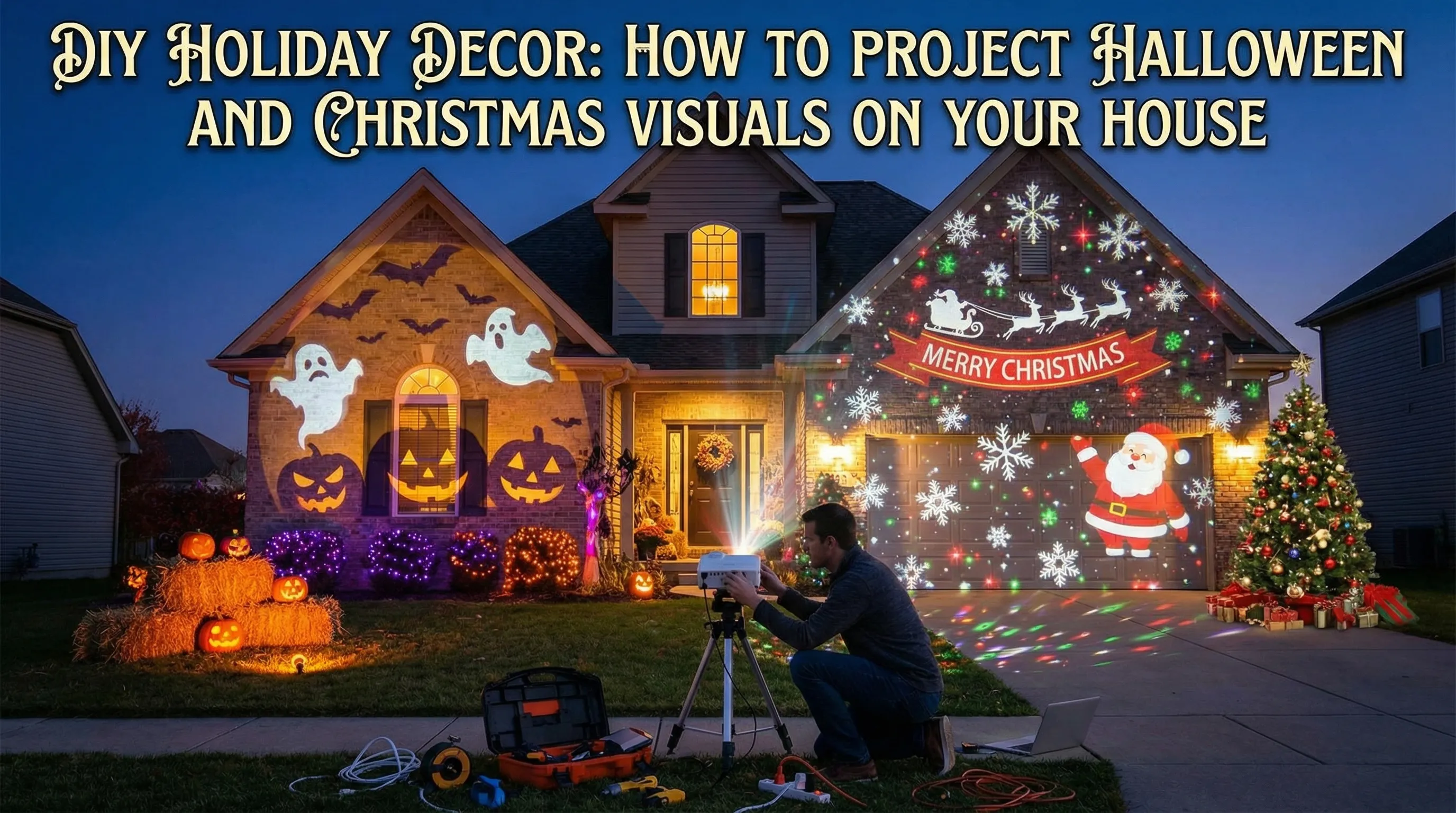
The hard work you did on the home haunt carries over. The corner pins, the warped edges, the surface cut to your window frame and the tape marks on the drive are a saved layout, and it does not care what plays through it. Swap the haunted window for falling snow or a wreath on the garage door, and the alignment is done.
Three things change. December runs longer, so lamp hours and a plug timer matter more. It is colder and wetter, which pushes you further toward projecting from inside. And ambient light gets worse, not better, because the whole street has its own decorations on. Budget more brightness than you did in October for the same surface. If the garage door is the surface you land on, the one-projector garage door Christmas guide takes that build on its own.
Frequently Asked Questions
How many lumens do I need for Halloween projection?
It depends which side of the glass you are on and how much area you are lighting. Rear-projecting one window from inside a dark room works at 500 to 800 ANSI lumens. A garage door or a single-storey section wants 2,000 to 3,000 ANSI. A whole house front is an outdoor evening display, which is 3,500 to 6,000+ ANSI — the same figure published in the SurfaBeam FAQ. Watch the unit: consumer boxes quote inflated LED lumens that can be ten times the ANSI number or worse, so a projector advertised at 9,000 lumens is often 400 to 600 ANSI.
Does SurfaBeam come with Halloween videos?
No. There is a shelf of built-in video loops in the app, but nothing Halloween-themed, and SurfaBeam does not sell or host seasonal content packs — it is the mapping and playback layer. It imports MP4 video and PNG or JPG stills that you bring. Home haunt builders buy packs from Halloween projection vendors, pull loops from stock libraries, or make their own in After Effects. If you are making your own, use Capture still image to photograph the lit window, then animate against that photo so the content is built around the real opening.
Can I run the whole Halloween display from my phone?
You can, and for the setup pass you should: standing at the window with the controls in your hand beats walking back to a laptop after every adjustment. For thirty nights of five-hour unattended playback, a Windows machine or a Mac wired over HDMI is the better host — no calls interrupting the output, no battery to manage, and you get your phone back.
How do I stop a Halloween projection annoying my neighbours?
Mask it. Most complaints are about the spill, not the content: the lit bars either side of your window landing on someone's bedroom glass at eleven at night. Shape the surface to the real opening so the light stops at the frame, aim so the projector cone does not cross a boundary, and use a plug timer.
More questions are answered in the SurfaBeam FAQ, and free projection mapping software covers exactly what the free tiers do and do not include.
Build the map in August. Run it in October.
Map one window on a warm evening, save the layout in Pro, and Halloween becomes a three-minute setup instead of an argument with a tripod in the dark. Build it on whichever machine will host the show: Android or iOS if you want the controls in your hand at the glass, Windows or macOS for the long unattended nights. The free version includes the full mapping, media, effects, tracking, visualizer and Timeline toolset, with a watermark on projected and exported output, an entry gate before mapping, and no project saving — Pro removes all three.