The Part Every Mapping Tutorial Skips
Projection mapping software is a geometry engine with a media player inside. That is true of every serious tool — the desktop suites, SurfaBeam, and everything else in our comparison of the best projection mapping apps. They warp, mask and play what you feed them. Almost none of them feed you.
SurfaBeam ships no content library either, and this page would be dishonest if it pretended otherwise. The clips are your job, and there are exactly three ways to do it — buy them, find free ones with a licence you can live with, or make your own. Most working displays end up a mix of all three.
Buying Content: The Route That Works First Time
The paid route exists because someone else already solved the hard parts. AtmosFX is the best-known seller of home-decor projection content — singing pumpkin faces, ghosts in windows, snowfall, the whole seasonal catalogue — sold per clip or per collection, and authored for exactly this use: black backgrounds, clean loop points, subjects framed to fill. Outside the holiday niche, stock marketplaces sell individual motion-graphics clips and VJ loop stores sell abstract packs by the hundred, all of which map just as happily onto a wall. Expect a few dollars for a stock loop, tens of dollars for a polished animated scene, and better per-clip prices in collections.
The catch is not quality, it is paperwork. Read the licence before checkout, not after. At most of these stores the default price buys a personal-use licence: your house, your party, your holiday display. The moment the display promotes a business — a decorated shop window very much included — you are in commercial territory, and most stores sell that as a separate, dearer tier. The clip file is identical; the paper is not, and the paper is what you produce when someone asks.
Free Content: What Actually Holds Up, and the YouTube Trap
There is genuinely usable free material, provided you take it from places that grant a real licence. Three shelves worth your time:
- Stock video sites with permissive licences. Pixabay, Pexels, Mixkit and Videvo all host smoke, ink-in-water, particle, plexus and fire clips on black, under standard licences that allow personal and most commercial use without attribution. Search terms that earn their keep: "smoke black background", "ink drop black", "particles loop". Honest expectation: these sites serve filmmakers, not mappers, so plan to audition twenty clips for each genuine seamless loop.
- Artist giveaways. A handful of motion designers release loop packs free, and Beeple's VJ loops are the famous example — broadcast-grade abstract material, given away, credit appreciated. Packs like these are how club VJs stock a library without a budget.
- Public-domain archives. NASA's image and video library is largely public domain, which makes it the cheapest space-themed wall content in existence. Expect to trim and re-encode, because none of it was cut to loop.
And then the trap. Search "free projection mapping loops" on YouTube and you will find hour-long compilations that look perfect for the job. Downloading them with a ripper is a copyright problem twice over: pulling the file breaches YouTube's terms, and half of those compilations are re-uploads of clips the uploader never owned either — watermarked store content included. A mistake in your living room is between you and your conscience; a display the whole street or a paying customer can see is a public performance of someone else's work, and content owners do notice the public ones. Build only on files whose licence you can point to.
Making Your Own: After Effects, Phone Editors and AI
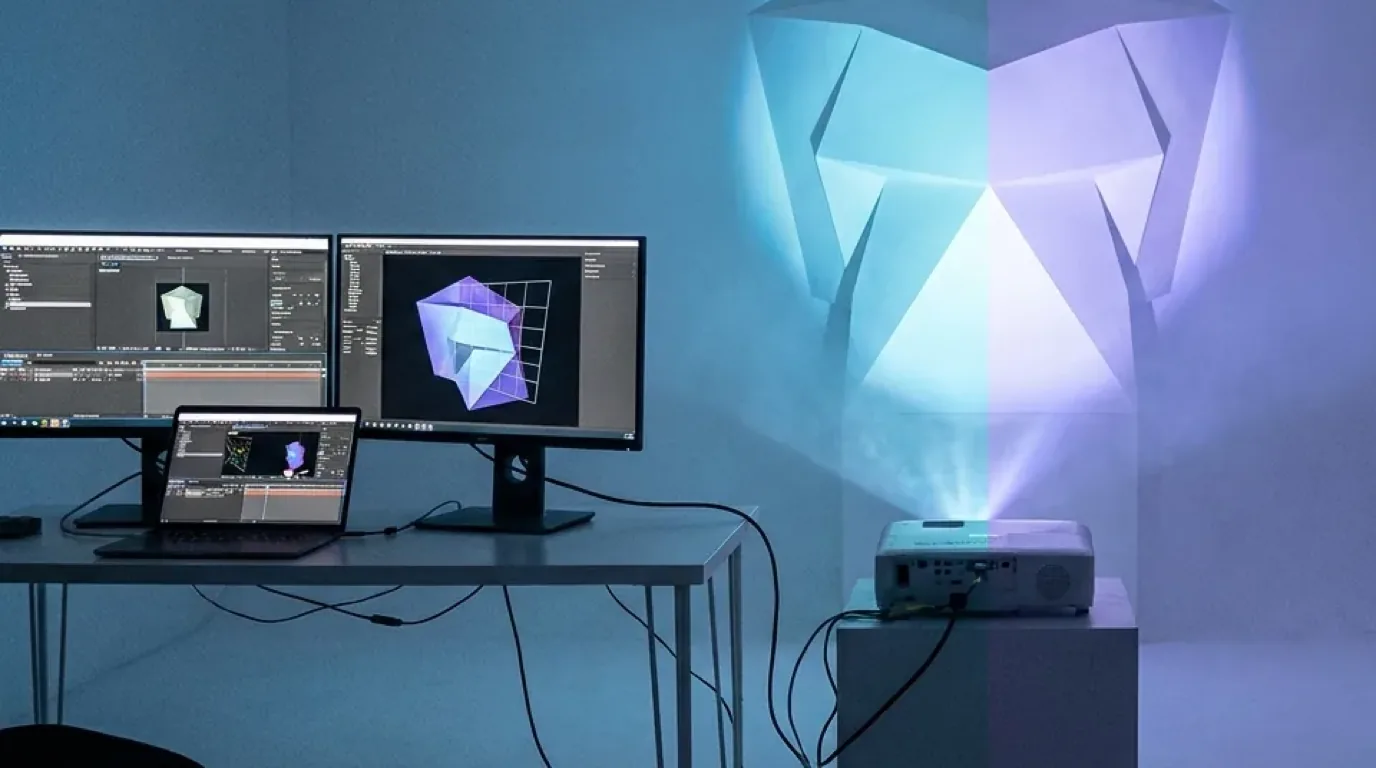
After Effects is the industry answer and still the best one. A composition on a black solid, shape layers, a particle plugin and a loopOut() expression carry you a long way, and Media Encoder renders straight to the H.264 MP4 you need. No budget? DaVinci Resolve's free tier includes Fusion, which covers most of the same ground for zero. Filming real objects works too — the classic singing-faces trick is a person performing against a black sheet — provided the backdrop is genuinely unlit, because the projector reproduces every wrinkle the camera saw.
CapCut and the other phone editors are better than their reputation here, within limits. Trimming a stock clip, speed-ramping it, reversing it and stitching copies back to back are one-minute jobs on a phone. Watch for three habits: vertical framing when your surface is almost never phone-shaped, templates that stamp captions onto the frame, and exports that quietly lift the blacks — confirm the background is still true black after export, not very dark grey.
AI video generators — Runway, Pika, Kling and their cousins — deserve an honest description. Ask for "slow blue ink swirling on a pure black background, seamless loop" and something striking arrives in under a minute, along with the two standing problems. The loop is not seamless: the last frame never matches the first, whatever the prompt promised, so crossfade the tail under the head in an editor before you call it a loop. And the "black" is really very dark grey that shimmers with compression noise, projecting as a faint breathing rectangle until you crush the blacks. Genuinely usable for abstract texture; for logos, architecture or lip-synced faces, the artifacts still give it away.
What a Usable Mapping Loop Actually Looks Like
Wherever a clip came from, it earns its place in a show by passing six checks. Cheap or hasty content fails at least one:
- A black background — actually black. A projector cannot project black; it can only fail to add light, so every pure-black pixel masks itself for free and the surface stays dark there. Nearly-black is a defect you can see from the street — a grey wash or a vignette projects as a glowing box around your artwork. Check by projecting the clip in a dark room, not by eyeballing a bright phone screen.
- A seamless loop point. First and last frames identical, or the motion continuous across the join. To check: set a player to loop and watch the join three times, or lay two copies back to back in an editor and step across the cut frame by frame. A one-frame hitch you would never notice on a phone reads as a blink at two metres wide, every thirty seconds, all evening.
- Aspect matched to the surface, not the phone. You are filling a garage door, a column, a window — a shape. Pixels landing outside the mapped surface are brightness spent on nothing, so a vertical phone clip on a wide wall throws most of its panel away before you start. Crop the content to roughly the shape of the thing it lands on.
- Standard H.264 in an MP4 container. The codec every phone, tablet and desktop decoder handles without complaint — not true of 10-bit HEVC, ProRes, VP9 or AV1, which play fine on the machine that made them and fail quietly on the one projecting. SurfaBeam copies imported media into app storage and plays it with the device's own decoder, so a clip that imports but projects as a plain black shape is almost always an unsupported codec, not a broken file. The fix is boring and reliable: re-export as standard H.264 MP4.
- A file size the device can live with. 1080p H.264 at 10 to 16 Mbps lands around 75 to 120 MB per minute, plays smoothly on any current phone, and looks identical to the 400 MB version through a consumer projector. Since imports are copied into app storage, a 2 GB showreel costs 2 GB of your phone — and monster bitrates are what makes mobile decoders stutter.
- Resolution matched to the projector, which usually means 1080p. A 4K file has four times the pixels of 1080p, and a 1080p projector throws three of them away after your device has burned battery decoding them: heat, dropped frames, zero visible gain. Deliver at native resolution, usually 1920x1080. If native resolution or throw ratio are fuzzy terms, the definitions live in the SurfaBeam FAQ.
Test clips on the machine that will play them
A loop that decodes on your editing PC can still fail on the tablet at the show. Install SurfaBeam on the device that will drive the projector and audition content there — import, map, play — the night you download it, not the night you present it. Same toolset on Windows, macOS, iOS and Android.
Prep in SurfaBeam: Five Steps From Folder to Surface
Content in hand, the prep pass takes about twenty minutes and saves an evening of on-site surprises. Keep the order — checking the decode after you have carved masks means carving them again.
Step 1: Import the clip and let SurfaBeam copy it
Import the clip through the media picker and give it a second: SurfaBeam copies imported media into its own app storage, so playback never depends on the original file staying where it was. The copy is also why file size matters twice — a 2 GB clip costs 2 GB of the device's storage the moment it joins the project.
A habit that pays off by December: import the final export, not the five drafts that led to it. Dead test clips pile up quietly, and phones notice.
Step 2: Drop it on a surface and check the decode
Add a surface, drag its four corner dots roughly onto the target, and assign the clip to it. If the clip imports but projects as a plain black shape where the video should be, you are almost certainly looking at an unsupported codec rather than a broken file — re-export it as standard H.264 MP4 at the projector's resolution and import that instead.
This sixty-second check is the whole reason to prep the night you download rather than the night you show. The black-shape surprise always waits for an audience.
Step 3: Choose the mask: surface edges, Custom Mask, or PNG Overlay
Decide how the light gets its shape. Everything outside a surface projects as black already, so for a rectangular target the four corners are the whole job. Pick Custom Mask carves a surface to the light and dark shape of an image you hand it, with a Threshold slider to place the cut and an Invert toggle if it keeps the wrong side. PNG Overlay adds a graphic on top of the output instead — a frame, a logo, a border that hides a ragged edge.
One clip across several objects is its own pattern: tag the surface holding the whole video as the Extended Mask Video parent, give each of the other surfaces a Child Video Mask, and one clip plays continuously across all of them — the trick behind the three-up faces in our singing pumpkins guide.
Step 4: Pro: export the map and design to the surface
Once the geometry is calibrated, use Map Export to PNG and the exact outlines of your mapped surfaces leave the app as an image. Drop that PNG into After Effects or any editor as a guide layer and build the artwork to those shapes, so the content fits the surface before it ever reaches the projector. Export is a Pro feature, along with Save and Load.
This step quietly flips the whole page. Instead of hunting for a loop that happens to fit your wall, you author one that cannot miss — which is how the polished whole-house holiday displays are actually made.
Step 5: Run the loop from where the audience stands
Play the finished loop for at least two full cycles from where people will actually watch, not from behind the projector. You are checking three things: the loop join does not blink, the background projects as darkness rather than a grey rectangle, and the edges of the mask sit on the object rather than the wall behind it.
Two honest notes on versions. The permanently free edition has the full mapping, masking, Warp, media, effects, tracking, visualizer and Timeline toolset, but it watermarks both the projected and the exported output and puts an entry gate before mapping — on Android you can pass it by watching a rewarded ad. Save, Load and Export, Map Export to PNG included, are Pro. And there is no cloud sync: Pro's Save to Files writes a portable Scene_<date>.json that Load from Files opens on another machine, but the project stores links to your media rather than the media itself, so the clips travel with it or the show arrives empty.
The Licensing Box: Personal vs Commercial
The test is not where the display stands, it is what the display does. Your porch on Halloween sells nothing: personal. A projection in a shop window is commercial even though the sidewalk is public and nobody pays to watch — the display exists to sell, and that is the whole test. If that is your project, the setup side is covered in our store window projection mapping guide; the licence side is this box.
- Bought clips: the default licence at most stores is personal use. Commercial display is a separate tier at a separate price. Keep the licence PDF and the invoice somewhere you can find them.
- Free stock: the standard Pixabay and Pexels-style licences do allow commercial use without attribution, but individual clips can carry extra restrictions — recognisable people and property especially. Check the licence text on the clip's own page and keep a copy.
- Your own work: animate it from scratch and it is yours everywhere. AI output is governed by the generator's terms — commercial use is generally allowed on paid tiers, but read the plan you are on, not the marketing page.
- Music: a separate licence from the video, always — and playing music in a public or commercial setting involves performance rights the video licence never touches.
- Ripped YouTube video: no licence at all, personal or commercial. There is nothing to argue.
Keep reading
- The best projection mapping apps for 2026 — what each tool actually does, side by side.
- DIY holiday decor with projection — where most of this content ends up in October and December.
- Singing pumpkins, set up properly — the classic three-up content pattern, mapped surface by surface.
- Projection mapping FAQ — lumens, throw ratios, cables and formats defined in one place.
Frequently Asked Questions
Where can I get free projection mapping content?
Stock video sites with permissive licences are the reliable shelf: Pixabay, Pexels, Mixkit and Videvo all host smoke, ink, particle and fire clips on black backgrounds that map well, and their standard licences allow personal and most commercial use without attribution. A few motion artists also give away loop packs, Beeple's free VJ loops being the best-known example, and NASA's image and video library is largely public domain. Expect to audition many clips for each genuine seamless loop, because stock sites are built for filmmakers rather than mappers.
What video format is best for projection mapping?
Standard H.264 in an MP4 container, at the projector's native resolution and frame rate, with a genuinely black background and a seamless loop point. H.264 is the codec every phone, tablet and desktop decoder handles without complaint, which is not true of 10-bit HEVC, ProRes or AV1. Resolution should match the projector rather than the source: a 4K file played through a 1080p projector costs four times the decoding work for no visible gain.
Can I download YouTube videos to use for projection mapping?
Treat it as off the table. Ripping a video breaches YouTube's terms of service, and the projection loop compilations on YouTube are frequently re-uploads of clips the uploader never had rights to in the first place, so there is no licence anywhere in the chain. For a display the public or your customers can see, that is a copyright problem you cannot argue your way out of. Buy the clip, use free stock with a real licence, or make your own.
Does SurfaBeam include built-in content?
No. SurfaBeam is the mapping tool, not a content library: it imports your MP4 video and PNG images and handles surfaces, masking, warping, playback and output from there. The one thing it generates itself is the music visualizer, which takes an audio file you load and renders one of twelve procedural modes onto your surfaces; it does not make an imported video react to audio. Every clip in your show is a clip you bought, found or made.
Can I use free stock video in a shop window display?
Usually yes, but verify it per clip. The standard licences on Pixabay, Pexels and similar sites allow commercial use without attribution, and a shop window is commercial use, because the display exists to promote the business even though nobody pays to watch it. Individual clips can carry extra restrictions, especially where recognisable people or property appear, so check the licence text on the clip's own page and keep a copy. Content bought for personal use is the bigger risk: most per-clip stores sell home and commercial licences separately.
More definitions and hardware answers live in the SurfaBeam FAQ, and the user guide documents every panel and gesture in the app if you want the reference rather than the walkthrough.
Source three clips tonight, map them tomorrow
Download one free stock loop, cut one of your own, and price one bought clip — then run all three through the five-step prep pass and see which survives the sidewalk test. SurfaBeam runs on Windows, macOS, iOS and Android with the same toolset everywhere, and every installer and store badge is collected on the download page if you would rather pick from one list.