What Projection Mapping Software Actually Does
A projector throws a rectangle. The world is not a rectangle. Everything projection mapping software does follows from that mismatch, and it comes down to five jobs.
Geometry correction and warping
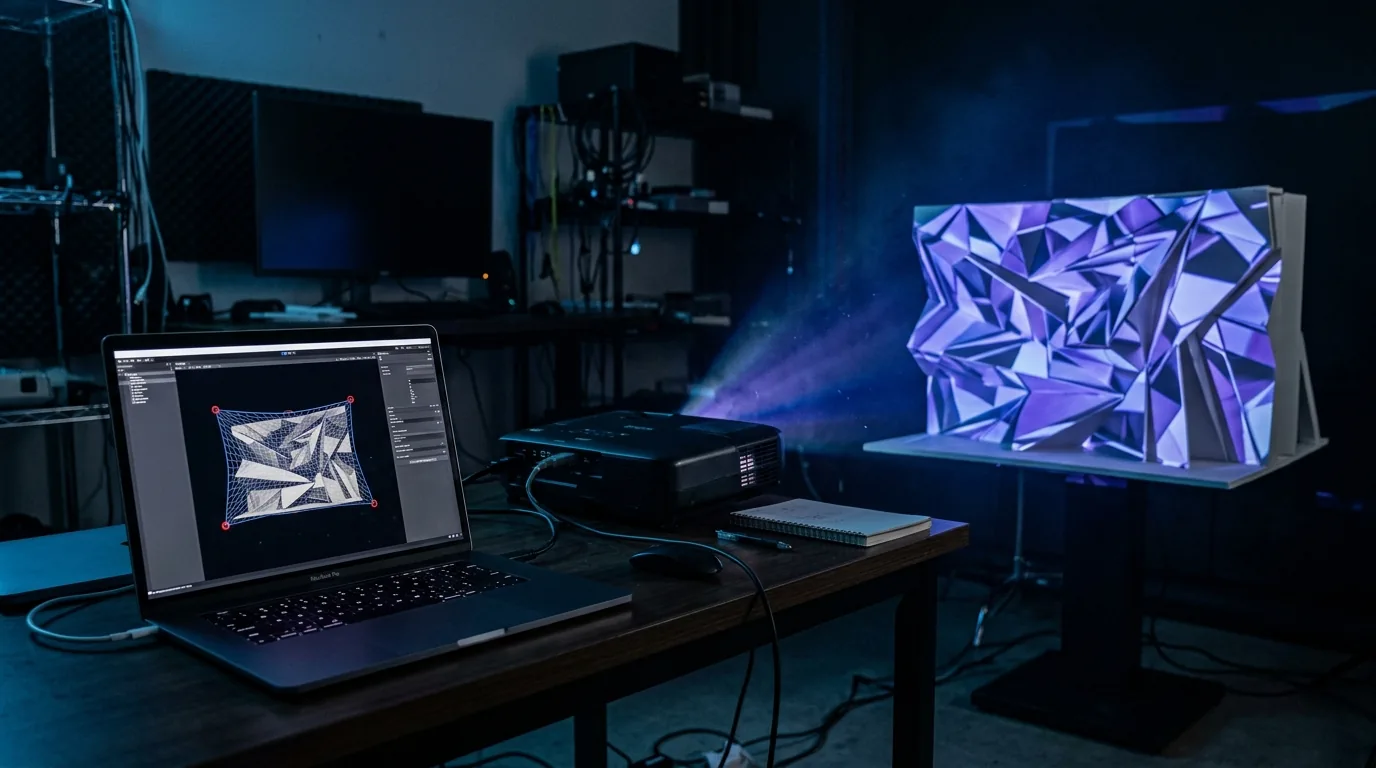
This is the core function, at two levels. Corner pinning drags the four corners of your image onto the four corners of the surface — enough for a wall, a banner or a shop window seen slightly off-axis. Mesh warping subdivides the image into a grid and lets you move interior points, which is what anything curved demands: a column, a car bonnet, an arched doorway. Keystone correction on the projector is not a substitute; it squares up trapezoids and throws away pixels doing it.
Angle matters more than most people expect. Place the projector as close to perpendicular to the main surface as the room allows. The steeper the angle, the more of your image you spend on correction: the far edge of the surface is dimmer and lower in effective resolution than the near edge, because the same pixels are stretched over more wall. Software can rescue a bad angle, but it cannot un-spend those pixels — which is why moving the projector 30 cm is often worth more than an hour of warping.
Masking
Warping puts light where you want it. Masking keeps it off everything else — window frames, gutters, the strip of wall above the object. Good software lets you draw arbitrary polygons and subtract them from a layer. Without masking you have a squarish glow on a building; with it you have an object that appears lit from within. That is the difference between "a video playing on a wall" and mapping.
Media playback and layering
You need reliable video and image decoding, and more than one layer at once, each with its own geometry and mask. A shop-front job might be three: a looping texture on the brickwork, a logo on the fascia, an animated element in the doorway. Layer count, blend modes and opacity turn a warped video into a composition.
The playback detail that catches people out is the loop. Content that has to run unattended for four hours needs a clip whose last frame cuts cleanly to its first, and a player that loops without a black frame or an audible hitch between passes. Test that before the show, not during it — a one-frame gap that you barely notice on a laptop preview reads as a flicker at three metres wide.
Effects, tracking and reactivity
Not every tool has this, and not every job needs it. Sound-reactive visualizers drive parameters from the audio the room is already hearing, so the projection moves with the set instead of running beside it. Touch and tracking go further: hand, body or object tracking lets the image respond to where someone is standing, which is the whole point of a brand activation people are meant to walk into.
The caveat is that reactivity is a poor substitute for content. An audio-reactive effect over a weak loop still looks like a weak loop. It earns its place where the audience is close enough to notice they caused something — a club wall, a foyer, a pop-up stand — and adds nothing to a static architectural piece watched from fifty metres.
Timeline and cueing
Once a show has a beginning, a middle and an end, you have to sequence it. A timeline editor places clips against time, cross-fades between scenes and repeats the same run reliably — which is what you want for a fifteen-minute piece that plays every half hour all evening. Live-triggered setups want the opposite: cue buttons you hit against a DJ set or a speaker who is running late. Large productions want neither, and take timecode from the audio department so projection, lighting and sound all count from the same clock.
Decide which of the three you actually need before you shortlist tools, because it splits the market cleanly. A timeline and a cue list are different products in practice, even when one app offers both.
The Four Categories of Video Mapping Software
Almost every tool you will find belongs to one of four groups. Working out which group you need eliminates most of the decision.
1. Desktop pro suites
MadMapper, Resolume Arena, HeavyM, Millumin, Isadora and TouchDesigner. These run on Windows or macOS (a few are macOS-only — check before you buy), and sell either a perpetual licence or a subscription. They offer deep control: many layers, node or patch-based content generation, DMX and Art-Net output, MIDI and OSC, and in several cases 3D-model-based mapping. The cost is a real learning curve — days, not hours, before you are fast — and a laptop that comes to the venue and stays there for the duration.
2. Cross-platform mapping apps
This category is easy to overlook, because "software" still reads as "a desktop product". Apps in this group run the same mapping engine on a phone, a tablet and a desktop, and let you use whichever is convenient on the day. SurfaBeam sits here. Nearby, with narrower scope: Optoma Projection Mapper (Android, iOS and Amazon Fire; free, and built around rectangular surfaces with bezier-curvable edges rather than point-level mesh warping), Lazy Lighting (iPhone and iPad only, with a drawing-led approach that suits generated visuals more than imported video) and HeavyM Remote (iOS and Android, but a remote control for the HeavyM desktop application rather than a standalone mapper).
The advantage is not price, it is the walk-around: standing at the surface with the controls in your hand removes the adjust-at-laptop, walk-over, look, walk-back loop. On an irregular object that loop is most of your setup time.
3. Media servers
disguise, Green Hippo Hippotizer, Dataton Watchout and Christie Pandoras Box are a different class of product: software sold as, or alongside, a turnkey machine, built to drive many projector outputs at once with soft-edge blending, map from a 3D model of the actual building, and run locked to timecode next to the lighting and audio departments. For a cathedral, a stadium or a full facade with six or twelve blended projectors, this is the correct answer and nothing above replaces it. These are usually rented for the run rather than bought, and usually come with an operator who knows the system.
4. Free and open-source projection mapping tools
VPT (Video Projection Tools), MapMap and LPMT are free, capable of real mapping, and rough around the edges. They suit students, experiments and anyone whose budget is zero and whose time is not. The trade-offs are the usual ones for community-maintained software: interfaces built by developers for developers, documentation that assumes you already know the vocabulary, and community support rather than anyone you can call at 7pm when the show is at 8. Several commercial tools also offer free tiers, which are usually a faster route in.
More in this series
- Projection mapping software for Windows — installer, Microsoft Store and Steam routes compared.
- Projection mapping on iPhone and iPad — AirPlay, Lightning and USB-C HDMI output.
- Free projection mapping software — what you actually get without paying.
- Lazy Lighting alternatives — the closest options on iOS and beyond.
"Software" No Longer Means "A Laptop in the Corner"
Worth stating plainly, because it is the assumption that shapes most searches: SurfaBeam is not a mobile-only app. It runs on Windows and macOS as well as Android and iOS, and the desktop build carries the same mapping, warping, masking, tracking and effects toolset as the mobile versions. On Windows there are three installation routes — a direct .exe installer, the Microsoft Store, and Steam, where the base app is free and Pro is a one-time DLC purchase rather than a subscription.
Most people end up using both. Build the map and cut the content on the desktop, where you have a keyboard and a big screen; take the phone or tablet to the venue for the calibration pass, where standing two metres from the surface is worth more than a mouse.
Categories at a Glance
| Category | Runs on | Typical projectors | Learning curve | Best for |
|---|---|---|---|---|
| Desktop pro suites | Windows, macOS | 1–4 | Steep | Touring VJs, studios, DMX-integrated shows |
| Cross-platform apps | Windows, macOS, Android, iOS | 1 | Shallow | Events, retail, installs, DIY, on-site iteration |
| Media servers | Turnkey hardware + software | 4–30+ blended | Specialist | Architectural facades, stadiums, timecoded shows |
| Free / open source | Mostly desktop | 1–2 | Variable | Students, experiments, zero-budget projects |
How to Choose: Surface, Venue, Budget
Start with the surface
Flat and rectangular — a screen, a banner, a plain wall — needs corner pinning and nothing more. Flat but irregular, such as a window with mullions or a wall with a doorway you must avoid, needs masking. Anything with curvature or depth needs mesh warping, and this is where cheaper tools quietly stop. Several separate objects in one scene need multi-surface mapping: independent geometry per layer, not one big warped rectangle.
Then the venue and the projector
Work out your throw first, because it constrains everything else. Throw distance equals image width times the projector's throw ratio: a 1.5:1 lens making a 2 m wide image sits 3 m back. If the room does not allow that, you need a short-throw lens, not better software. On brightness, 2,000–3,000 lumens is comfortable indoors with the lights down; outdoors plan on 4,000–6,000, and accept that a pale surface does more for you than another thousand lumens.
Then decide how picture gets out of the machine. Wired — USB-C or Lightning to HDMI from a phone or tablet, HDMI from a laptop — is what you use for anything that matters. Wireless, via AirPlay or Chromecast, is fine for rehearsal and home projects but adds latency and depends on venue Wi-Fi. Our AirPlay setup walkthrough covers making the wireless route as stable as it gets.
Then the budget — and be honest about scale
Software is rarely the expensive part. Projectors, mounting, cable runs, power and content production dominate almost every budget. Choose software by fit rather than price, and spend the saving on lumens or a better loop.
Two pricing details are worth reading before you commit, because they bite later rather than at checkout. First, whether the licence is perpetual or a subscription: a perpetual licence keeps working on the machine you already set up, a lapsed subscription can leave you unable to open a project the week before a repeat booking. Second, whether the licence is per-machine — relevant the moment you want the map on the venue's spare laptop as a backup. Neither makes a tool wrong, but they change what "cheap" means over three years.
Be equally honest in the other direction. If the brief is a full building facade with several projectors blended into one seamless image, driven from a 3D survey and locked to timecode, do not force a single-output tool to do it. Hire a media server and someone who runs one weekly. Every category here is the wrong answer for some job, including ours.
Try it on the platform you already have
SurfaBeam runs on Windows, macOS, Android and iOS with the same toolset on each. Free to start — full mapping, media, effects, tracking, visualizers and Timeline.
Where SurfaBeam Fits — and Where It Does Not
SurfaBeam is a single-output cross-platform mapper: mesh warping, corner pinning, digital masking, multi-surface mapping, MP4 and PNG import, touch- and sound-reactive effects, hand, body and object tracking, visualizers and a Timeline editor, with AirPlay and Chromecast output alongside USB-C and Lightning HDMI. That set is aimed at one projector and one operator — events, retail, installations, stage backdrops, holiday work, prototyping.
What it is not: a multi-projector edge-blending system, and not a replacement for a media server on a facade job. If you need DMX and Art-Net fixture control woven into the same timeline, a category-one desktop suite serves you better. If you already own HeavyM, HeavyM Remote is the sensible companion. And for a flat holiday window silhouette you set up once, the free Optoma Projection Mapper covers it without needing point-level mesh warping at all.
On free versus paid the line falls where you would expect. The free version gives you the full mapping, media, effects, tracking, visualizer and Timeline toolset, but watermarks the projected image and exported video, shows an entry gate before mapping (subscribe, or watch a rewarded ad on Android), and does not save or load project files. Pro removes the watermark and the entry gate and unlocks Save, Load and Export, including Map Export to PNG — the piece you want when taking a calibrated map into After Effects to design content that fits the surface exactly. Pro is sold as Monthly, Quarterly, Yearly and one-time Lifetime plans on the App Store and Google Play, and as a one-time DLC on Steam. Full breakdown in our comparison of mapping apps across iOS and Android.
A Realistic First Session
Whatever tool you choose, the order of operations is the same, and getting it wrong costs an hour.
- Place and lock the projector first. Every calibration you do is relative to its exact position. A tripod that sags 5 mm overnight will misalign the whole map.
- Set the output resolution to the projector's native panel — usually 1920×1080, sometimes 3840×2160. Scaling twice is how edges go soft.
- Corner pin before you mesh. Starting with a dense grid means fighting dozens of points that one corner move would have fixed.
- Subdivide only where the surface bends. A 4×4 grid handles most gentle curves; extra points make the map harder to adjust later, not more accurate.
- Mask last. Masks are drawn against the warped image, so re-warping after masking means redrawing.
- Deliver content as H.264 MP4 at the projector's frame rate. It plays back more reliably than exotic codecs, and stutter reads as failure even when the map is perfect.
- Check from where the audience will stand, not from behind the projector. Only one of those views is being judged.
If this is your first map, the beginner's guide to digital mapping walks the same steps with screenshots, the SurfaBeam user guide documents every panel and gesture in the app, and the smartphone mapping tutorial covers the handheld workflow end to end.
Frequently Asked Questions
What is projection mapping software?
Projection mapping software is the layer that sits between your media and your projector. It does four jobs: it corrects the geometry so a rectangular video frame lands correctly on a non-rectangular surface, it masks out the areas that should stay dark, it plays and layers your content, and it triggers or sequences that content during a show. Ordinary video players do none of this, which is why a mapped projection needs dedicated software rather than a full-screen media player.
Does projection mapping software need a powerful computer?
It depends on the category. A single-projector map of a wall, a van or a shop window is handled comfortably by a modern phone, tablet or laptop, because you are decoding one 1080p video and warping it. Heavy loads come from multiple simultaneous 4K layers, many outputs, and real-time 3D rendering. If you are running one projector, hardware is rarely the limiting factor — your content and your calibration are.
Is there free projection mapping software?
Yes. There are genuinely free open-source tools such as VPT (Video Projection Tools), MapMap and LPMT, and several commercial apps offer free tiers. SurfaBeam's free version includes the full mapping, media, effects, tracking, visualizer and Timeline toolset; it adds a watermark to the projected image and to exported video, shows an entry gate before mapping, and reserves saving and loading project files for Pro.
Does SurfaBeam projection mapping software run on Windows and macOS?
Yes. SurfaBeam runs on Windows and macOS as well as Android and iOS, and the desktop build has the same mapping, warping, masking, tracking and effects toolset as the mobile apps. On Windows there are three ways to install it: a direct .exe installer from the SurfaBeam site, the Microsoft Store, and Steam, where the base app is free and Pro is a one-time DLC rather than a subscription.
What is the difference between projection mapping software and a media server?
A media server is projection mapping software plus dedicated hardware, multi-output blending and show-control integration. Systems such as disguise, Green Hippo Hippotizer, Dataton Watchout and Christie Pandoras Box are built for large architectural projections that use several projectors edge-blended into one image, driven from a 3D model of the building and synchronised to timecode. If you are running a single projector onto a wall, an object or a facade section, that capability is cost and complexity you will not use.
More questions of this kind are answered in our projection mapping FAQ, and new tutorials are posted regularly on the SurfaBeam blog.
Map your first surface this week
Install SurfaBeam on the device you already own — Windows, macOS, Android or iOS — connect a projector, and warp your first map. The free version includes the full mapping, media, effects, tracking, visualizer and Timeline toolset so you can judge it properly before paying anything.