The Android Projection Mapping Landscape
Projection mapping used to be a technique reserved for high-budget concerts, corporate events, and specialized digital artists. It required powerful laptops, expensive software licenses costing $40+ per month, and hours of painstaking geometric calibration.
As smartphone processors caught up—any 2024-or-later flagship phone now rivals desktop-class GPU performance for graphics tasks—a new question emerged: can you do professional projection mapping directly from your Android phone?
The answer is a resounding yes, and the Android side of this market has stopped being a one-horse race. Lazy Lighting now ships on Google Play alongside the App Store, and Optoma Projection Mapper runs on Android and Amazon Fire as well as iOS. Add SurfaBeam and you have three genuine choices — fewer than iOS, but no longer a category with a single occupant. They are not interchangeable, though, and the differences between them are large enough to decide your project for you. Here is what each one is actually for.
Can You Really Do Projection Mapping on an Android Phone?
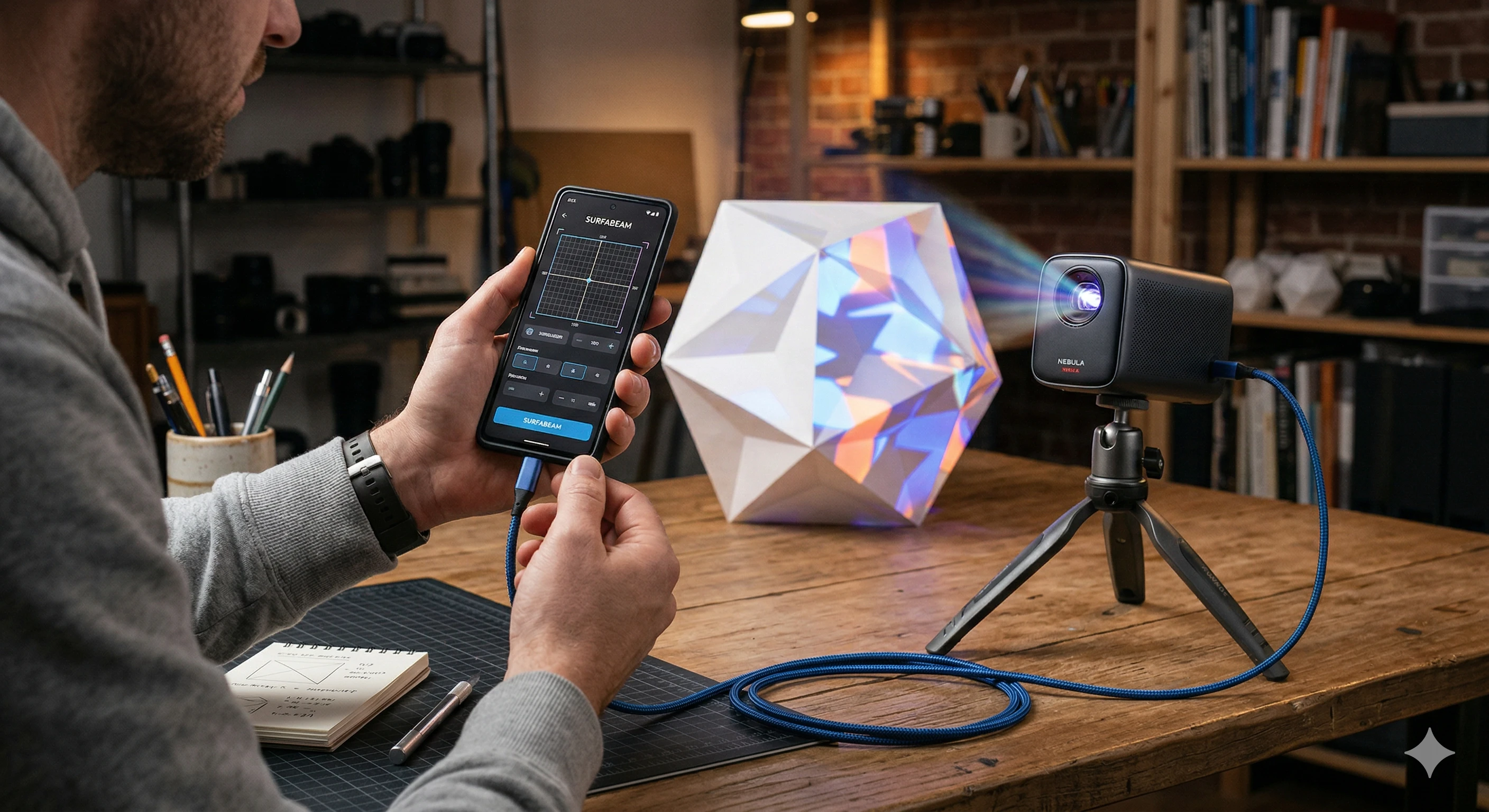
Absolutely. Mobile projection mapping on Android works by connecting your phone to a projector (via USB-C to HDMI or wireless casting) and using the touchscreen as a live control surface. You can warp corners, draw custom masks, and adjust your map while walking around the venue—no laptop, no mouse, no cables trailing across the floor.
Android's strength here is its touchscreen precision combined with processing power. The native multi-touch input allows for fingertip-precise adjustments: drag the corners of your projected visual with your finger until the digital image perfectly hugs the physical object in front of you. It is faster and more intuitive than any desktop mouse-driven workflow.
The Three Android Options, Compared Honestly
Here is the field as it actually stands on Google Play in 2026, with what each app is genuinely good at:
- SurfaBeam — corner pinning, Bezier edge warping, polygon masking, camera tracking, sound-reactive visualizers and a Timeline editor, on Android, iOS, macOS and Windows. Permanently free, with a watermark on projected and exported output, an entry gate before mapping, and Save, Load and Export reserved for Pro; Pro is sold monthly, quarterly, yearly or as a one-time Lifetime purchase. Best for: curved and architectural surfaces, timed shows, and anyone who wants the same toolset on a phone and on the machine in the venue.
- Lazy Lighting — a well-built phone and tablet app on both Google Play and the App Store, built around a drawing-led workflow rather than surface warping: cut, mask and warp tools, a Draw mode for making visuals live, and a dual-channel setup that lets you mix and cross-fade two layers while the show is running. Free download with in-app purchases at roughly $20 a year or about $130 for a lifetime unlock. No desktop build. Best for: expressive, generated light shows driven live — a band backdrop or a house display you perform rather than program.
- Optoma Projection Mapper (formerly DynaMapper) — a paid one-time purchase on Android, iOS and Amazon Fire, and it works with any projector, not just Optoma hardware. It gives you rectangular surfaces whose sides bend into curves, which comfortably beats a plain four-corner keystone. A material pack is bundled with the purchase and further themed packs are sold separately. Best for: flat panels, windows and gently arched openings, bought once with nothing to renew.
The line that separates them is what happens when the surface stops being flat. Optoma's editing is confined to a rectangle primitive — bending its sides is as far as it goes, with no point-level mesh underneath — and Lazy Lighting's strength is the visuals it generates rather than the geometry it can conform them to. SurfaBeam is the only Android app offering true curved-surface warping with Bezier edge handles: bow each edge of any surface into a curve, then fine-tune with each corner's tangent handles until the image sits properly on a pillar, an arch, a bay window or a car bonnet. On a flat garage door all three will look much the same. On a column they will not.
None of that makes the other two bad buys. If you want a light show without a computer and you like drawing your visuals live, Lazy Lighting is the more enjoyable app and its dual-channel mixing is genuinely better for performing. If you map one flat window once a year and resent subscriptions, Optoma's single purchase is the cheaper answer over five years. Our Lazy Lighting alternatives comparison goes through that trade-off app by app, including ILW Light Mapper and HeavyM Remote.
SurfaBeam itself is built and maintained by Secundum Reality, and it bridges professional-grade utility and consumer ease-of-use — replacing a $3,000 laptop and a $40-a-month desktop licence with something that fits in your jacket. Android and iOS have identical feature sets, so your muscle memory carries across. Your project files do not: there is no cloud sync, no account-linked projects and no project-file handoff between platforms, so build the map on whichever device will host the show.
You can also read our full comparison of the best projection mapping apps across iOS and Android to see how all of these stack up side by side.
Key Features of SurfaBeam on Android
SurfaBeam is not a simplified mobile version of a desktop tool. It was built mobile-first and runs natively on Android hardware, with no cloud processing or lag. Here is what you get:
Precision Bezier Edge Warping
Drag the four corners into place, then double-tap any corner to reveal its orange tangent handles and bend each edge into a smooth Bezier curve under your fingertips—aligning content with 3D shapes: cylinders, angled columns, irregular architectural features, curved walls. The warping engine runs natively on device with no rendering wait time, so every adjustment you make is visible live on your physical surface.
Custom Shape Masking
Draw unlimited polygons directly on your touchscreen to mask out specific areas—windows, doors, furniture, gaps—so the projection stays precisely where you want it and nowhere else. This is the feature that separates real projection mapping from simple keystoning.
Multi-Layer & Multi-Surface Mapping
Map multiple videos onto different surfaces simultaneously. Project a logo onto a DJ booth while mapping an animated loop onto the back wall behind the stage. Each layer has independent opacity and mask controls so you can fine-tune the full composition on the fly.
Real-Time Live Preview
Every adjustment you make in SurfaBeam appears instantly on the projected surface. There are no rendering wait times, no "apply and preview" loops. This makes it genuinely viable for live event work where you need to iterate and correct in real time.
Gallery Import & Export
Import photos and videos directly from your Android gallery — that part is free. Map Export, which writes your finished map out as a PNG for post-production work in After Effects or Photoshop, is a Pro feature, as are Save and Load. The app supports common video formats including MP4 and MOV.
Finger Effects & Sound Reactive Mode
Touch your screen to trigger reactive visual effects in the projected output. Enable Sound Reactive mode and SurfaBeam will drive the visuals with the beat of the music—ideal for DJ sets, club events, and live performances.
How Ads, Permissions and Your Data Work on Android
SurfaBeam requests no unnecessary permissions, and tracking and computer-vision processing run on your device rather than in the cloud. On Android, the free edition shows an entry gate before mapping: subscribe, or watch a rewarded ad to continue. Pro removes the entry gate. The Privacy Policy lists every third-party service in full. Your creative work stays private. The app runs entirely offline once installed—no internet connection is needed to use the mapping tools.
Ready to map on Android?
Download SurfaBeam for free from the Google Play Store and start projection mapping in minutes. No laptop. No cables. No prior experience needed.
Download Free on Play Store Windows (.exe) Windows (Microsoft Store) Windows (Steam)How to Set Up Your First Android Projection Map
Getting started with SurfaBeam on your Android device is straightforward. Here is your quick-start guide:
Step 1 — Download SurfaBeam from Google Play
Search for SurfaBeam in the Google Play Store, or follow the direct link below. The app is free to download and free to keep, permanently — there is no countdown and nothing expires. The free edition gives you the full mapping, media, effects, tracking, visualizer and Timeline toolset. What it does not give you is clean output or a saved project: a watermark appears on the projected image and on exported video, an entry gate appears before you start mapping (subscribe, or watch a rewarded ad to continue), and Save, Load and Export — including Map Export to PNG — are Pro-only. Pro removes the watermark and the entry gate, and is sold on Google Play as a monthly, quarterly or yearly subscription or as a one-time Lifetime purchase.
Step 2 — Connect Your Android Phone to a Projector
You have two primary options:
- USB-C to HDMI: the most stable connection. Use a USB-C to HDMI adapter or cable, plug into your projector's HDMI port, and your Android display will mirror automatically on most devices.
- Wireless Casting: Chromecast, Miracast, or your projector's built-in screen mirroring. Works well for casual setups—latency is acceptable for static or slow-moving content but may introduce lag with fast animations.
For live events and professional installs, USB-C to HDMI is always the better choice. Wireless casting is convenient for home use, holiday decorations, and rehearsals. For AirPlay users on iOS, see our guide on 5 steps to set up wireless projection mapping via AirPlay.
Step 3 — Position and Secure Your Projector
Mount or position your projector so the beam hits the object or surface you want to map. Lock it down—even small movements between calibration and playback will shift the alignment. A projector stand, tripod, or C-clamp mount all work well depending on the venue.
Step 4 — Trace Your Canvas in SurfaBeam
Open SurfaBeam, create a new project, and drag the corner handles until your projected frame matches the surface. For curved shapes, toggle WARP and double-tap a corner to reveal its orange tangent handles, then pull them to bow that edge along the surface. Draw polygon masks around any areas you want to exclude from the projection.
New to this step? Read our full beginner's guide to digital mapping for a detailed walkthrough of corner pinning and curved-edge warping.
Step 5 — Load Your Content and Go Live
Tap the gallery icon to import a video or image from your phone's storage. Press play and watch your physical surface transform. Adjust opacity, layering, and effects in real time as needed. One thing to plan for: saving and loading project files is a Pro feature, so on the free edition your alignment lives only as long as the session. If you will be running the same show at the same venue again — a shopfront every December, a stage you re-rig each month — Pro is what saves you from re-aligning from scratch every time.
Why Mobile Mapping Beats Desktop for Most Workflows
Desktop projection mapping software (Resolume, MadMapper, Millumin) is enormously powerful but comes with real costs: a licence that runs to several hundred dollars outright, or a subscription in the $40–$60 per month range, depending on the vendor and the tier — MadMapper, for instance, is sold as a perpetual licence or as a subscription depending on which tier you pick. Add a steep learning curve and the need to carry a laptop everywhere. You are also physically tethered to your machine—adjusting the map means walking back to the laptop, clicking, then walking back to the surface to check.
With SurfaBeam on Android, your control surface is always in your hand. You can walk directly up to the wall, tap to adjust a corner or a warp handle, and immediately see the result on the surface in front of you. This eliminates the walk-back loop and makes iteration dramatically faster—especially for curved or architectural surfaces where precise alignment is critical.
- Cost: a permanently free SurfaBeam tier — watermarked, with an entry gate, and no Save, Load or Export — versus $40–$60/month desktop software. SurfaBeam Pro clears those limits for a fraction of a desktop licence.
- Setup Speed: open the app and start mapping in under 5 minutes vs. 20–45 minute desktop setup.
- Portability: fits in your pocket. A laptop does not.
- On-Site Iteration: adjust with your finger while standing next to the surface.
For ideas on what you can create with a phone and a projector, browse our holiday projection mapping guide or the complete smartphone projection mapping tutorial.
What Android Devices Does SurfaBeam Support?
SurfaBeam runs on Android 8.0 (Oreo) and later, which covers the vast majority of Android devices currently in use. Confirmed compatible manufacturers include:
- Samsung Galaxy — S series, A series, Galaxy Tab tablets
- Google Pixel — Pixel 6 through Pixel 9 series
- OnePlus — OnePlus 10 and later
- Motorola — Moto G and Edge series
- Xiaomi / Redmi — MIUI and HyperOS devices
- Nothing Phone — Nothing OS 2.0 and later
For tablet users, SurfaBeam scales beautifully to larger screen sizes. A Samsung Galaxy Tab or a Pixel Tablet gives you a larger work area for placing corners, warp handles and masks—making complex surfaces easier to handle.
Frequently Asked Questions
Is SurfaBeam free on Android?
Yes, and permanently — SurfaBeam is not a time-limited trial. The free edition on Google Play includes the full mapping, media, effects, tracking, visualizer and Timeline toolset. Its limits are a watermark on the projected image and on exported video, and an entry gate before you start mapping: subscribe, or watch a rewarded ad to continue. Save, Load and Export — including Map Export to PNG — are reserved for Pro. Pro removes the watermark and the entry gate, and is sold on Google Play as a monthly, quarterly or yearly subscription or as a one-time Lifetime purchase.
What projector do I need for Android projection mapping?
Any projector with an HDMI input works, but read the ANSI lumen figure rather than the headline number on the box — consumer projectors advertise inflated LED lumen ratings that can be around ten times the real ANSI figure. In a dark room on a small target, 500 to 1,500 ANSI lumens is enough. A living room wants 3,000 to 5,000 ANSI lumens. An outdoor evening house or stage needs 3,500 to 6,000+ ANSI lumens, and a large architectural facade starts at 10,000 ANSI lumens and climbs past 30,000. The low small-target figure does not contradict the outdoor range: it assumes darkness and a small surface, and the same projector will look washed out the moment you aim it at a whole house. Short-throw projectors are ideal for tight spaces where you cannot project from far back, and pico projectors work only for small surfaces in a dark room.
Does SurfaBeam work without an internet connection?
Yes. Once installed, SurfaBeam runs entirely offline. No internet is required to use the warping, masking, or playback features. This is important for live events and venue installs where Wi-Fi can be unreliable.
Is SurfaBeam different on Android vs iOS?
The toolset is the same. SurfaBeam maintains full feature parity between Android and iOS, and the interface and tools are identical across both operating systems. Projects, however, do not travel. There is no cloud sync, no account-linked projects and no project-file handoff between platforms, so a map built on an Android phone cannot be reopened on an iPhone, a Mac or a Windows PC. Build the map on whichever machine will host the show.
Ready to turn your Android into a projection mapping powerhouse?
SurfaBeam is the only Android app offering true curved-surface warping with Bezier edge handles, and it is built to perform. It is free to download and free to keep — watermarked, with an entry gate, and with Save, Load and Export reserved for Pro. Map your first surface in under 10 minutes. No laptop, no prior experience, no expensive hardware required.