What Actually Differs Between the Two
The real gap is not in the mapping maths. It is in what each kind of machine can physically connect to, and in where you are standing while you use it.
The mapping engine is rarely the difference
Corner pinning, mesh warping and polygon masking are cheap operations. You are moving control points on a grid and sampling a texture through it, which is the kind of work every GPU of the last decade is built around. Phones and tablets also decode H.264 and HEVC in dedicated hardware rather than on the CPU, so a 1080p clip costs the processor very little and leaves room for the warp. Put a single-projector map of a shop window side by side, one built on a laptop and one on a tablet, and nobody in the street can tell you which is which.
So the honest framing is not "which is more powerful". It is: what does a desktop machine have that a handheld one structurally cannot have, and vice versa?
Outputs, ports and what "one output" costs you
A desktop or laptop can drive several displays at once, accept capture cards, take a live camera input, and route video between applications on the same machine. That last one matters more than it sounds: Syphon on macOS and Spout on Windows have passed video frames between applications in real time for years, and NDI carries video over a network between machines. A phone or tablet has one video output and a much tighter sandbox between apps. Almost everything else in this comparison follows from that single architectural fact.
Two projectors edge-blended into one wide image need two synchronised outputs. A handheld device exposes one, so it cannot produce them — a hardware constraint rather than a feature waiting to be added.
Where you stand while you work
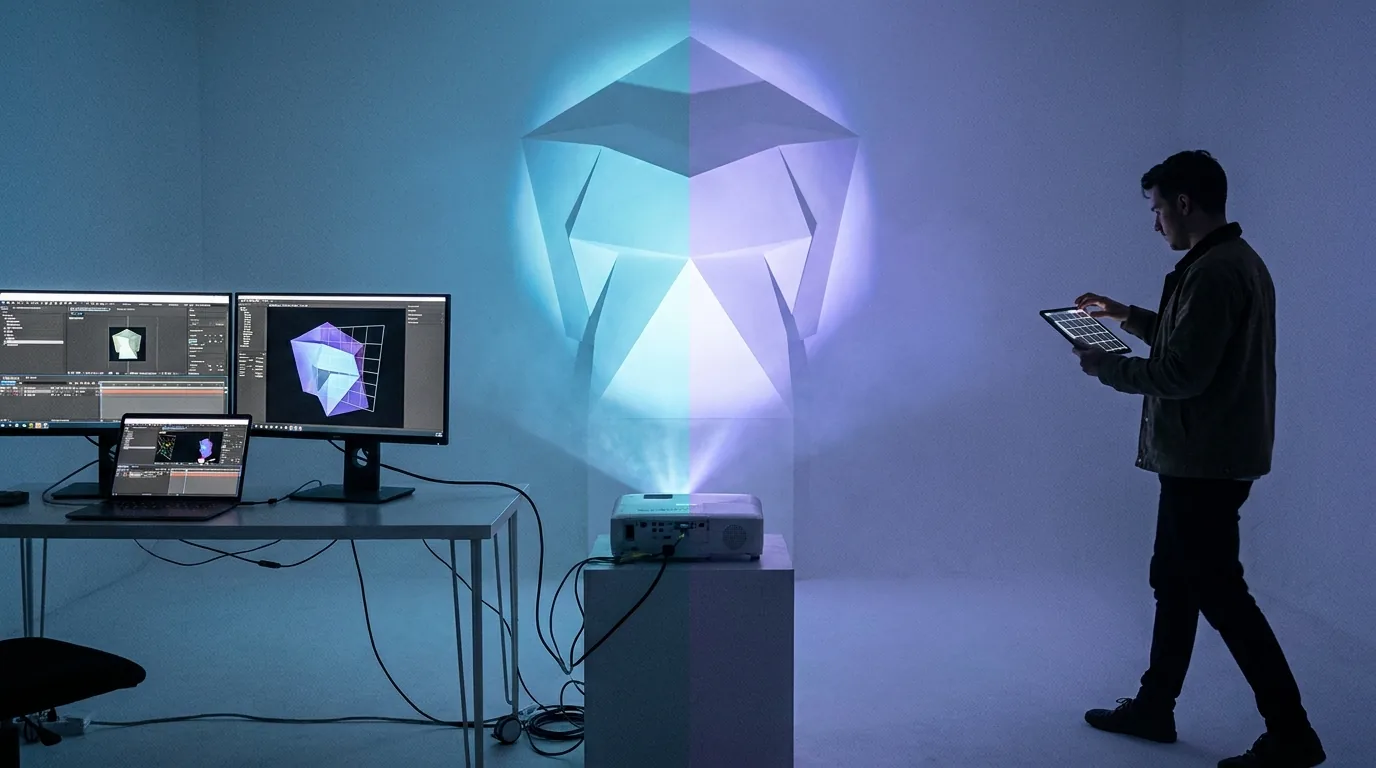
This is the advantage that never appears in a feature table and dominates real setup time. With a laptop on a table behind the projector, you adjust a control point, walk to the surface, look at it, walk back and adjust again. On an irregular object that round trip repeats far more often than anyone plans for. With the controls in your hand at the surface, you drag the point while watching the light land on the brickwork, so each adjustment is a correction rather than a guess — and you are judging the result from where the audience will stand, which is not the same view you get from behind the lens.
When a Desktop Setup Is the Right Tool
Four kinds of job make a desktop machine the right answer, and none of them are about raw processing power.
More than one projector, or edge blending
The moment the brief involves covering a surface too wide for one lens, you are in desktop territory or media server territory. Two projectors aimed to overlap — conventionally by something in the region of ten to twenty per cent of the image width — need soft-edge blending, which means a matched luminance ramp across the overlap so the join disappears, plus geometry that treats both outputs as one continuous canvas. On Windows and macOS, MadMapper and Resolume Arena both do this properly, and either is the correct purchase for that job: MadMapper is mapping-first, organised around surfaces and masks, while Arena comes from the VJ side and is stronger when the show is triggered live. For a whole facade driven from a 3D survey and locked to timecode, hire a media server — disguise, Green Hippo Hippotizer, Dataton Watchout and Christie Pandoras Box are the names you will meet — along with someone who runs one regularly. No handheld app substitutes for either tier, ours included.
Long shows, heavy media and unattended runs
A twenty-minute sequenced piece with a dozen scenes, cross-fades and audio is simply easier to build on a large screen with a mouse. Scrubbing a timeline, nudging a clip by four frames, trimming a fade — all of it is faster with a pointer and keyboard shortcuts than with fingertips on glass.
Unattended reliability is the stronger argument. A retail window that plays from 4pm to midnight every day for six weeks wants a small mains-powered machine bolted behind the display: no battery, no incoming calls, no operating system deciding to update at 9pm because it thinks nobody is using the device. Set the display to Extend rather than Mirror, set the projector output to the panel's native resolution, disable sleep, screensaver and automatic updates, and it will run. That is a desktop job, and a modest mini PC does it as well as an expensive laptop.
DMX, Art-Net and show control
If the projection has to sit inside a lighting rig — moving heads, LED bars and the projected content all cued together — you need DMX or Art-Net output, and probably MIDI or OSC as well. Several desktop tools cover this ground, and they are not interchangeable. MadMapper pairs its mapping tools with DMX and Art-Net output, so mapped surfaces and physical fixtures are addressed from the same project. Resolume Arena is built around triggering clips live, which suits a set driven from a controller rather than a fixed timeline. Millumin, which is macOS only, and Isadora are both at home in theatre and live performance, where cues fire in a called order. TouchDesigner is a node-based environment rather than an app with a mapping panel — the one to reach for when the piece is generative, sensor-driven or otherwise bespoke. Each of those is better than SurfaBeam at the job it was built for. SurfaBeam has no fixture control at all, so if DMX is in the brief, buy one of them instead.
Licensing models differ between these vendors — some perpetual, some subscription, some both, with separate education and commercial terms — and they change. Check the current terms on each vendor's own site rather than trusting a figure quoted in an article, this one included.
Precise offline preparation
Content that fits a surface exactly is designed against that surface, not cropped to it afterwards. The workflow is to calibrate the map once, export the mask geometry as a PNG, drop that PNG into After Effects or Blender as a guide layer, and animate inside the real outline — so a flame licks up the actual column and stops at the actual capital. SurfaBeam Pro's Map Export to PNG produces exactly that file. The design work afterwards is desktop work; there is no realistic version of it on a phone.
When Mobile or Tablet Genuinely Wins
None of the advantages below are about the mapping being better. They are about the time between deciding to change something and seeing whether the change worked, and about how much equipment has to survive the walk from the car to the surface.
Walking the venue while you adjust
On anything irregular — a statue, a car bonnet, a stack of crates, a shop front with mullions and a downpipe — the constraint on your evening is the feedback loop, not the software. Standing a metre from the object with the mesh under your thumb collapses that loop to nothing. You can also check the map from the three or four positions the audience will actually occupy, which is where mapping errors reveal themselves, and correct them on the spot rather than making a mental note to fix it back at the table.
Setup time, cabling and the table you did not bring
A handheld setup is a device, one HDMI adapter and one cable. No table, no mains socket for the laptop, no ten metres of HDMI taped across a doorway, nothing left unattended in a public space. For a pop-up stand, a wedding, a market stall or a bar with no back-of-house, that difference is the whole reason the job is possible. Load-in and load-out are measured in minutes.
Wireless output through AirPlay or Chromecast removes the last cable, which is genuinely useful for rehearsal, home projects and awkward projector positions. Treat it as a convenience rather than a show format: it adds latency and depends on venue Wi-Fi, so anything that matters runs wired.
Small surfaces and short jobs
A single window silhouette for Halloween, a logo on a fascia for a three-hour launch, a mapped backdrop behind a DJ, a Valentine's projection on a bedroom wall — one projector, one surface, one operator, a couple of hours of life. Booting a professional suite for this is like renting a van to carry a bag. The free-tier route covers most of these outright.
Budget, and the device already in your pocket
Most people asking this question already own a phone and do not own a spare laptop they are willing to leave in a venue overnight. A mobile setup adds a projector, an adapter and a cable to hardware you already have. It is also the better place to learn, because you find out whether you enjoy warping meshes at 11pm in a cold car park before you spend anything on a licence. Our Android app breakdown and the iPhone and iPad guide cover the output hardware for each side.
More in this series
- Projection mapping software: the full guide — the four categories and how to choose between them.
- Projection mapping software for Windows — installer, Microsoft Store and Steam routes compared.
- The best mapping apps for iOS and Android — where each one is strongest.
- Lazy Lighting alternatives — the closest options on iOS and beyond.
The Hybrid Workflow Most People Actually Need
Framing this as a binary is the mistake. Plenty of people who take this work on regularly end up carrying both, because the two halves of the job pull in opposite directions: preparation rewards a big screen, a keyboard and quiet, while calibration rewards standing at the surface. Here is the split that works.
On the desktop, before you leave: cut and grade the content, build the loop so its last frame cuts cleanly to its first, and export as H.264 MP4 at the projector's frame rate. Take stills of the surface, build a rough map, and export the mask as a PNG so your content is designed inside the real outline rather than trimmed to it later. Do the fiddly timeline work here — clip order, cross-fade lengths, audio sync — because none of it depends on being at the venue.
On site, on the device driving the projector: place and lock the projector first, then calibrate. Every control point you move is relative to that exact position, so the map has to be finished where the projector actually sits. Corner pin before you mesh, subdivide only where the surface bends, and mask last — masks are drawn against the warped image, so re-warping afterwards means redrawing them.
One caution that saves an evening: build the map on the machine that will be connected to the projector during the show. Do not calibrate on a tablet and then plan to run from a laptop, or the other way round. Media files move between devices trivially; a calibration is tied to one projector position and one output, and re-deriving it under time pressure is not a task you want at 6pm. This is where a genuinely cross-platform app earns its keep — the panels, gestures and vocabulary are identical whichever end you are working at, so nothing has to be relearned when you switch. The SurfaBeam user guide documents each panel in the order you meet it on every platform.
Decision Table: Job Type to Recommended Setup
Find the row that matches what you have actually been asked to do. The blue rows are comfortably within reach of a phone or tablet on its own. The unshaded rows want a desktop machine somewhere in the workflow, usually for preparation or for reliability rather than for the mapping itself. The amber rows need a desktop suite that SurfaBeam does not replace, and the red one needs a media server and someone who operates them.
| Job | Recommended setup | Why |
|---|---|---|
| First map, learning, zero budget | Phone, free tier | No hardware to buy; learn the craft before the tool |
| Irregular object — statue, vehicle, furniture | Tablet, walked around the surface | Adjust the mesh while looking at the light on the object |
| One-night event, no back-of-house | Phone or tablet, wired HDMI | Minutes to set up; nothing left unattended |
| Retail window running nightly for weeks | Small mains-powered desktop | No battery, no notifications, no thermal drift |
| 15–20 minute timeline show, one projector | Build on desktop, calibrate on the show device | Timeline editing is faster with a mouse and a big screen |
| Content designed to fit the surface exactly | Desktop, with Map Export to PNG | After Effects or Blender work needs a desktop |
| Two or more projectors, edge blended | Desktop suite (Arena, MadMapper) | Blending needs two synchronised outputs; a handheld has one |
| Projection cued with DMX / Art-Net lighting | Desktop suite | Handheld mapping apps do not generally output DMX or Art-Net |
| Live VJ set, cue-triggered to music | Desktop VJ suite + MIDI controller | Cue banks and physical faders are easier to hit mid-set |
| Full building facade, timecoded | Media server + operator | Multi-output blending and 3D survey work; hire it |
Run the same toolset on both halves of the workflow
SurfaBeam runs on Windows, macOS, Android and iOS with the same mapping, warping, masking, tracking, visualizer and Timeline tools on each. Free to start on every platform.
Mobile & tablet
One App Store listing covers iPhone, iPad and Mac. On Windows, Steam offers the base app free with Pro as a one-time DLC rather than a subscription.
Desktop vs Mobile Projection Mapping: The Honest Limits
Both sides have failure modes that only show up on the night, and both are avoidable if you know about them in advance.
What catches people out on mobile
Power first: a device outputting video over HDMI drains quickly, so use an adapter with power passthrough and keep it plugged in for the whole run. Then interruptions — set auto-lock to Never and turn on Do Not Disturb, because an incoming call or a lock screen puts your projection on a wall of nothing in front of an audience. Then heat: sustained decoding warms a device, and a warm device throttles and drops frames, so keep it out of direct sun and well away from the projector's exhaust. Finally, accept the ceiling — one output, no fixture control, and finer timeline work that is simply slower on a small screen.
What catches people out on desktop
Operating systems interrupt too, just differently: sleep timers, screensavers, update prompts and notification banners all render straight onto your projected output if the display is mirrored. Set the projector as an extended display, put the show output on it, and turn every one of those off before the doors open. Watch out for the machine choosing a scaled resolution rather than the projector's native panel — scaling twice softens every edge you carefully aligned. And budget for the walking: on a complex object, a laptop-only setup spends time on trips between table and surface that never appears in anyone's schedule, which is exactly the gap a tablet fills.
Where SurfaBeam sits in this
SurfaBeam is a single-output cross-platform mapper on Android, iOS, macOS and Windows: mesh warping, corner pinning, digital masking, multi-surface mapping, MP4 and PNG import, touch- and sound-reactive effects, hand, body and object tracking, visualizers and a Timeline editor, with AirPlay and Chromecast output alongside USB-C and Lightning HDMI. It is built for one projector and one operator on either side of the desktop-mobile line. It is not a multi-projector blending system, it has no DMX or Art-Net output, and it does not replace a media server on a facade. If your brief includes any of those three, buy or hire accordingly — the fuller category breakdown is in our projection mapping software guide.
On free versus paid, the line is the same on every platform. The free version gives you the full mapping, media, effects, tracking, visualizer and Timeline toolset, but watermarks the projected image and exported video, shows an entry gate before mapping (subscribe, or watch a rewarded ad on Android), and does not save or load project files. Pro removes the watermark and the entry gate and unlocks Save, Load and Export, including Map Export to PNG. For a hybrid workflow, saving project files is the part that matters most: it is what lets you reopen last week's calibration instead of rebuilding it.
So — Do I Need a Laptop for Projection Mapping?
For one projector, no. Buy the projector, an adapter and a cable, and map from the device you own. The quality of a single-surface map depends on projector placement, brightness relative to ambient light, and how good your content is — none of which a laptop improves.
Add a desktop machine when a specific requirement arrives: a second projector, DMX in the timeline, an installation that has to run unattended for weeks, or content you want to design against an exported map. That is a purchase driven by a job, not by a feeling that real work requires a laptop.
If you are choosing your first setup this month, the practical order is: pick the projector for your throw distance and ambient light, map from your phone or tablet on the free tier for two or three jobs, and let the fourth job tell you what you are missing. More answers to setup questions of this kind are in the projection mapping FAQ, and new walkthroughs go up regularly on the SurfaBeam blog.
Frequently Asked Questions
Do I need a laptop for projection mapping?
No, not for a single projector. A modern phone or tablet can decode a 1080p clip, warp it, mask it and send it to a projector over USB-C or Lightning HDMI, which covers most window displays, wall projections, stage backdrops and object mapping. You need a laptop or desktop when the job needs more than one output, edge blending between projectors, DMX or Art-Net lighting integration, several heavy media layers at once, or long unattended runs where a mains-powered machine is simply more dependable than a battery.
Is desktop projection mapping software better than mobile apps?
It is better at a specific list of things rather than better overall. Desktop suites win on multiple outputs and edge blending, DMX and Art-Net fixture control, MIDI and OSC show control, video routing between applications, and the precision that a mouse and a large screen give you for fine timeline and mask work. Mobile wins on setup speed, on being able to stand at the surface while you adjust it, and on not needing a machine, a table and a cable run at the venue. For one projector on one surface, the mapping result is usually indistinguishable.
Can a phone or tablet run a projection mapping show for several hours?
Yes, with three precautions. Use an HDMI adapter with power passthrough so the device charges while it outputs, otherwise a long show will drain it. Set auto-lock to Never and turn on Do Not Disturb so nothing interrupts the output. And keep the device cool and out of the projector's exhaust, because sustained decoding plus heat causes thermal throttling and dropped frames. For a display that runs every evening for weeks, a small mains-powered desktop machine is the more sensible choice.
What is the best projection mapping setup for a beginner?
The device you already own, one projector, and a wired HDMI connection. Start on a phone or tablet with a free tier so you learn corner pinning, mesh warping and masking without buying anything, then add a desktop machine only when a job asks for something the handheld setup cannot do. Buying a laptop and a professional licence before your first map means learning the tool and the craft at the same time, which is slower than learning the craft first.
Can I prepare a projection map on desktop and run it from a phone?
You can prepare the content on desktop and move it easily, but the map itself is calibrated to one exact projector position and should be built on the device that will drive the projector on the night. The practical hybrid workflow is to design and export your MP4 and PNG media on desktop, copy those files to the device, and do the warping, masking and calibration on site with the machine that is actually connected to the projector. Because SurfaBeam uses the same toolset on Windows, macOS, Android and iOS, the controls are identical whichever end you are working at.
Install it on both, decide with your own hands
The fastest way to settle this for your own work is to put SurfaBeam on your desktop and on your phone or tablet, map the same surface twice, and see which one gets you there first. The free version includes the full mapping, media, effects, tracking, visualizer and Timeline toolset on every platform.
Mobile & tablet
One App Store listing covers iPhone, iPad and Mac. Windows has three routes — the .exe installer, the Microsoft Store and Steam — and on Steam the base app is free with Pro sold as a one-time DLC rather than a subscription.